How to Get Out of World Editor in BeamNG.drive Quickly
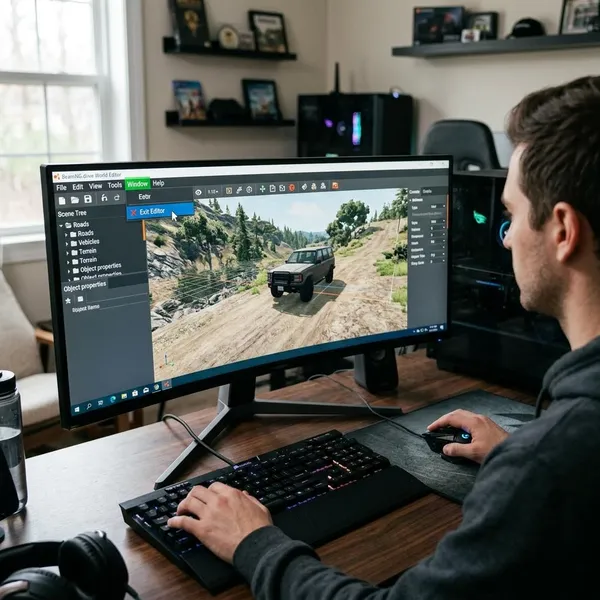
Press F11 to get out of the World Editor in BeamNG.drive. If the editor does not close, try the same shortcut you used to open it, check whether your keyboard is actually sending F11, and then make sure the game has returned to normal driving instead of staying paused or stuck in an editor state.
How to exit the World Editor in BeamNG.drive
The normal exit is simple, but it helps to check the result instead of just pressing keys repeatedly. BeamNG.drive can sometimes take a moment to switch back, especially on a busy map or after editing objects.
Press F11 to close the editor
Press F11 once. In the default setup, F11 toggles the World Editor on and off, so the same key that opened the editor should return you to the driving view.
If you entered through Ctrl + F11, try Ctrl + F11 again before changing settings. That matters if you opened a different editor mode and plain F11 does not seem to respond.
Wait for the driving screen to return
Give the game a second after pressing the shortcut. The editor toolbar, object tools, and editor windows should disappear, and the normal driving HUD should come back.
Check that your vehicle controls work
Once the editor is gone, test the basics: throttle, brake, steering, and camera. The important check is whether the vehicle responds, not just whether the editor panels disappeared.
- Car drives normally: you are out of the editor.
- Camera moves but the car does not: physics may be paused or the game may not have input focus.
- HUD is missing or odd: toggle the editor once more carefully, then reload the map if it still looks wrong.
What to do if F11 does not close the World Editor
If F11 does nothing, do not jump straight to restarting the game. The usual cause is that BeamNG.drive is not receiving the key press, or the World Editor shortcut has been changed.
Check the World Editor key binding
Look up the assigned World Editor shortcut in the controls menu. If the binding is blank, changed, or shared with another action, F11 may not behave consistently.
This is worth checking if you use custom control profiles, mods that affect inputs, or an older setup where you may have changed the shortcut months ago and forgotten about it.
Check your function key settings
On many laptops and compact keyboards, F11 may control brightness, volume, or another system feature unless you hold Fn. Try Fn + F11 once before assuming BeamNG.drive is broken.
If Fn + F11 works, your best long-term fix is either changing the keyboard's function-row behavior or assigning the World Editor to a key that your keyboard sends reliably.
Remove conflicting keyboard shortcuts
Close or temporarily disable software that might capture F11 before the game sees it. The most likely culprits are overlays, recording tools, macro software, keyboard utilities, and fullscreen shortcuts.
- Overlay active: close GPU, streaming, or recording overlays and test F11 again.
- Gaming keyboard profile: switch to a default profile and remove any F11 macro.
- Window focus problem: click back inside BeamNG.drive before pressing the shortcut.
Restart the map if the editor stays stuck
Reload the current map if the editor interface only partly closes or the camera still behaves like it is in edit mode. This is a better first reset than restarting the whole game, especially if you have only been switching between driving and editing on one map.
If the same map keeps getting stuck after repeated object editing, terrain changes, or mod testing, return to the main menu and load it again cleanly. A full game restart is only worth doing after the map reload fails.
How to check the World Editor key binding
Checking the binding is the most controlled way to fix the problem because it tells you whether the issue is the shortcut itself, your keyboard, or the current game session.
Open Options and Controls
Open Options, then go to Controls. If the editor UI is awkward to use, go back to the main menu first so you can work in the settings screen without fighting the camera or editor panels.
Find the World Editor binding
Use the search field and look for World Editor. You want the toggle command that opens and closes the editor, not a camera control or a separate editor tool.
Check for two things: whether the command still has a shortcut, and whether the same shortcut is already being used by something else important. A duplicated key can make the editor feel random even when the binding looks correct at first glance.
Restore or change the shortcut
If you want the default behavior, set the World Editor toggle back to F11. If F11 is awkward on your keyboard, choose a shortcut you will not hit while driving and that is not used by your recording software or keyboard app.
- Search for World Editor in Controls.
- Clear any duplicate or broken binding.
- Assign F11 or another clean shortcut.
- Save the change before returning to gameplay.
Test the new key in gameplay
Load a simple free-roam map and test the shortcut both ways: press it once to open the editor, then press it again to close it. Do this before starting a longer editing session so you know the binding is reliable.
If the new key opens the editor but does not close it, the problem is probably not the key alone. Move on to paused physics, input focus, or a map reload.
What to do if the game feels stuck after exiting
Sometimes you have already left the World Editor, but BeamNG.drive still does not feel back to normal. Treat that as a gameplay-state problem rather than an editor-exit problem.
Resume paused physics
Press J once to resume physics. If the car suddenly starts moving again, the editor was closed correctly and the simulation was simply paused.
This often happens when you were editing the map, moving objects, or testing something in a more controlled state. The screen can look normal while the vehicle remains frozen, which makes it easy to blame the editor shortcut.
Check your driving controls
Click inside the game window and test your active input device. If you use both a keyboard and a controller or wheel, make sure BeamNG.drive is reading the device you expect.
- Keyboard user: test steering and throttle keys after clicking the game window.
- Controller or wheel user: move the device once, then check whether the controls menu detects input.
- After alt-tabbing: regain focus before testing the car.
Reload the current map
Reload the map when the HUD, camera, or vehicle state still feels wrong after checking physics and controls. This refreshes the session without making you close BeamNG.drive completely.
Use this step if the camera still feels detached from the vehicle, the editor view seems partly active, or the car will not respond even though physics are running. It is especially useful after repeated editing on a modded or busy map.
Restart the game if needed
Restart BeamNG.drive only after the shortcut, physics, controls, and map reload have failed. A restart clears the editor state and input handling completely, but it should be the last fix rather than the first one.
If the issue comes back often, test once with mods disabled. A clean session can tell you whether the problem is BeamNG.drive itself or a map, UI, or input mod interfering with normal behavior.
Conclusion
F11 is the first thing to try, but the useful check is what happens after you press it: the editor should disappear, the HUD should return, and the car should respond. If that chain breaks, work in order from key binding and function-key behavior to physics, controls, and finally a map reload, because most World Editor problems are small input or session-state issues rather than something that needs a full reinstall or panic restart.