Which Free Video Editor Fits Your Creative Needs?
If you want the best free editing software, start with the kind of video you actually need to finish. DaVinci Resolve is the strongest free choice for serious editing, CapCut is usually fastest for social clips, Clipchamp is easiest for simple Windows or browser projects, and Shotcut is the safest pick if you want open-source software with no paid tier.
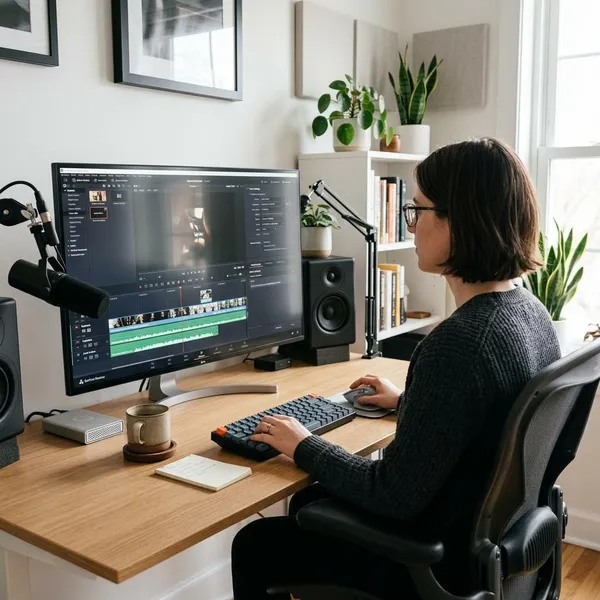
Best free editing software by project
The easiest mistake is choosing the most powerful editor when you only need the simplest one. A school presentation, a weekly TikTok, a family vacation video, and a polished YouTube review all put pressure on different parts of the software.
Use the project as the filter first. After that, check whether your computer can run the editor smoothly and whether the free export rules fit your final use.
DaVinci Resolve for advanced video editing
Choose DaVinci Resolve if you want a free editor that can handle long-form videos, interviews, tutorials, color correction, and detailed audio work. It is the most capable option here, but it also asks the most from you and from your computer.
Resolve makes sense when the video needs to look consistent, not just trimmed together. If you film a YouTube review with one camera angle near a window and another under indoor lighting, its color tools give you much more control than beginner editors. It is also a better fit for projects with voiceovers, music, background noise, or several layers of footage.
The tradeoff is time. A beginner can make a basic cut in Resolve, but the interface has more pages and more decisions than CapCut or Clipchamp. On an older laptop, test playback with your own footage before committing to a full project.
CapCut for quick social media clips
CapCut is the strongest pick when speed matters more than deep manual control. It is especially useful for Shorts, Reels, TikToks, talking-head clips, simple product videos, and quick edits that need captions or text effects.
- Best use: short vertical videos and fast publishing.
- Big advantage: captions, effects, and social-style tools are easy to reach.
- Main caution: some effects, templates, or assets may require a paid plan.
Clipchamp for simple browser-based projects
Clipchamp is a practical choice for light editing, especially if you use Windows and want something that does not feel intimidating. It works well for class projects, webcam explainers, screen recordings, family clips, and simple presentations.
The main appeal is that you can get started quickly. You can trim clips, add titles, record your screen, arrange basic audio, and export a clean video without learning a full professional workflow. For occasional editing, that matters more than having every advanced feature.
Shotcut for open-source desktop editing
Shotcut fits users who want a real desktop editor without subscriptions, watermarks, locked templates, or a freemium upgrade path. It runs on Windows, Mac, and Linux, which makes it useful if you do not want your editor tied to one platform.
The interface feels more traditional than modern social editors. That can be less friendly on day one, but it also means Shotcut stays focused on editing rather than pushing trends or premium assets. It is a good middle ground for practical home projects, basic YouTube videos, and users who prefer open-source tools.
How the free video editors compare
A feature list only helps if it connects to the way you edit. The biggest differences are not just "more tools" or "fewer tools"; they are device support, timeline control, captions, export friction, and how smoothly the app runs with your own footage.
| Editor | Best fit | Think twice if |
|---|---|---|
| DaVinci Resolve | Longer videos, color, audio, serious YouTube work | Your computer struggles with heavy footage |
| CapCut | Fast social clips, captions, templates, mobile-friendly workflows | You dislike paid elements appearing inside the editor |
| Clipchamp | Simple Windows projects, browser-based editing, screen recordings | You need advanced control over color, sound, or effects |
| Shotcut | Open-source desktop editing with no paid tier | You want the easiest beginner interface or social templates |
Device and operating system support
Check device support before you fall in love with any editor. DaVinci Resolve works on Windows, Mac, Linux, and iPad. Shotcut also covers Windows, Mac, and Linux. CapCut is strong if you move between phone, desktop, and web. Clipchamp is most convenient inside the Windows and Microsoft ecosystem.
Timeline, audio, and color tools
DaVinci Resolve has the deepest timeline, audio, and color tools of these four. It is the better choice when your video depends on clean voice levels, matching shots from different cameras, or correcting footage that looks too flat, too warm, or too dark.
CapCut covers the basics well for short-form work: trimming, layers, speed changes, text, simple adjustments, and quick polish. Clipchamp is better for straightforward assembly than detailed finishing. Shotcut gives more manual control than Clipchamp, although it takes more patience to learn.
Captions, effects, and templates
For captions and ready-made style, CapCut is the most convenient option. Auto-caption tools, text presets, transitions, and social-style effects are useful when the goal is to post quickly and keep a consistent look.
Clipchamp is also friendly for simple templates, presentations, and basic design elements. Resolve can create more advanced results, but you often build them manually. Shotcut has filters and effects, but it is not designed around trendy templates.
Learning curve and hardware needs
CapCut and Clipchamp are the easiest to learn. They are better choices when you need a finished video today or only edit occasionally. DaVinci Resolve is worth learning if you plan to keep improving, but it can feel heavy on weaker computers. Shotcut sits between them: lighter and open, but less polished for beginners.
- Choose the easy editor if the project is short, simple, and due soon.
- Choose the deeper editor if you will make many videos and want room to grow.
- Choose the lighter editor if smooth playback matters more than advanced tools.
What can you export for free?
Export rules are the part many people check too late. A video editor can feel perfect while editing, then become annoying if the final export adds a watermark, blocks a resolution you need, or flags a premium asset.
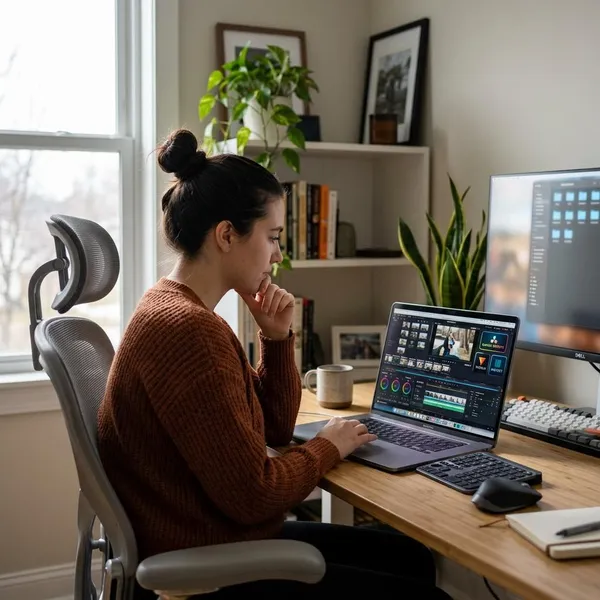
DaVinci Resolve export limits and Studio-only features
DaVinci Resolve is genuinely usable for serious free editing. For typical YouTube, family, interview, tutorial, and creator projects, the free version offers clean exports without forcing a watermark.
The paid Studio version adds features that matter more to advanced workflows, certain high-end formats, specialized effects, and professional production setups. If you are not sure whether you need Studio, you probably do not need it for your first few projects. Start with the free version and only upgrade if you hit a specific limit you can name.
CapCut export rules and paid elements
CapCut can export useful free videos, but the practical issue is paid elements inside the editing process. Effects, music, transitions, stock assets, or templates may be marked as premium, and those can affect the final export or require an upgrade.
Clipchamp export quality and premium assets
Clipchamp's free 1080p export is enough for many everyday projects. That covers school videos, family edits, basic YouTube uploads, screen recordings, and simple explainers.
The limitation is less about basic export and more about premium stock, templates, and design assets. If your video uses mostly your own footage with simple titles, the free tier is easy to work with. If you rely on built-in media, check whether each asset is included before you finish the edit.
Shotcut export options without a paid tier
Shotcut does not have a paid tier, which keeps the export experience straightforward. You are not working around watermarks, locked exports, or premium template warnings.
The tradeoff is that export settings may feel less beginner-friendly. If you are new, use a common preset close to your upload target and watch the finished file on both your computer and phone. Look for audio sync, subtitle sharpness, color shifts, and file size before you use the same settings for a longer video.
How to choose your free video editor
The best choice comes down to three checks: what you make, how your footage plays, and whether the free export gives you the file you need. Do those in that order and you will avoid most bad installs.
Match the tools to your videos
If you mostly make short social clips, start with CapCut. If you are building longer YouTube videos, interviews, tutorials, or anything that needs better sound and color, start with DaVinci Resolve. For simple Windows-based edits, Clipchamp is the low-stress option. For open-source desktop editing with no freemium pressure, Shotcut is the better match.
Test playback with your own footage
Use the same files you normally shoot. Phone footage, screen recordings, webcam clips, and camera files can behave differently, even when they look similar in a folder.
- Import your usual clip type. Do not rely on sample footage.
- Add a title and a few cuts. Basic edits often expose lag quickly.
- Scrub through the timeline. Smooth preview matters more than a long feature list.
- Try proxies if playback stutters. This can make larger files easier to edit.
Export a short project before committing
Export before you invest real time. Use a short test project with your normal resolution, a title, a piece of music or voice audio, and one effect you expect to use often.
Then watch the exported file like a viewer would. Check whether text is sharp, audio stays in sync, colors look acceptable, and no watermark or premium warning appears. If two editors both pass, choose the one that felt faster and less annoying during the test.
Conclusion
Pick DaVinci Resolve if you want the most room to grow, CapCut if short social videos are the priority, Clipchamp if you need a simple Windows-friendly editor, and Shotcut if you want open-source control without a paid tier. The smartest final check is not another feature comparison; it is exporting one short project with your own footage and choosing the editor that feels reliable from import to final file.