How Can You Create a Reusable Avatar from Video?
A comfyui video to live avatar heygen workflow can work, but the result depends much more on the source video than on the upload step. Treat the ComfyUI clip like clean training footage: one consistent person, steady framing, readable speech motion, and no distracting edits. If the character drifts or the camera keeps changing, it is usually better to rebuild the clip before sending it to HeyGen.
How does the ComfyUI to HeyGen LiveAvatar workflow work?
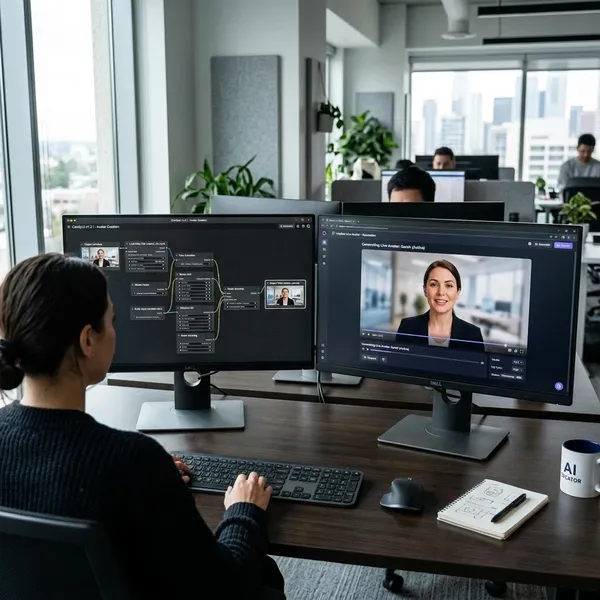
The workflow has two separate jobs. ComfyUI creates the performance video, while HeyGen uses that video to create a reusable LiveAvatar. The most important check comes before upload: does the clip look like the same person calmly speaking to camera from start to finish?
Create the source video in ComfyUI
Start with one character design and keep it boringly consistent. The face shape, hairstyle, clothing, lighting, and age appearance should not shift between frames. For a quick internal demo, a small imperfection may be acceptable; for a client-facing or long-term avatar, visible identity drift is worth fixing before you go any further.
Prepare the video for LiveAvatar
Review the export as if HeyGen has never seen the character before. Trim the start and end if needed, but avoid turning several separate takes into a stitched montage. One shorter continuous clip is usually safer than a longer edit with cuts, angle changes, or different lighting.
Upload and create the avatar in HeyGen
Use the HeyGen path meant for custom avatar or LiveAvatar creation, not a photo-only flow. Upload the final source file, follow the platform prompts, and complete any consent or verification step required for likeness use.
If HeyGen flags the video, do not assume the platform is being random. Common causes are practical: the face is too small, the subject changes appearance, the clip has hard cuts, or the audio is hard to understand.
Test the finished LiveAvatar
After approval, test with short scripts before using the avatar in a full project. Try a greeting, a one-sentence explainer, and a slightly longer paragraph. Watch the mouth, eyes, pacing, and neutral pauses; those small details reveal whether the source video gave HeyGen enough clean information.
What does your LiveAvatar source video need?
Your source video should look more like a clean presenter recording than a finished ad. Fancy camera moves, dramatic expressions, and heavy styling may look impressive in ComfyUI, but they can make the avatar less stable later.
One continuous video
Use one uninterrupted performance whenever possible. Hard cuts can introduce small differences in expression, angle, lighting, or facial detail, and those differences may weaken the avatar build. If the clip needs to be shorter, cut from the beginning or end rather than combining multiple sections.
Clear listening and talking sections
The subject should not talk with maximum expression every second. Include natural speech, brief pauses, blinking, and a calm resting face between lines. Those quiet moments help the avatar look less frozen when a future script has pauses or slower pacing.
Natural face and body movement
A presenter-style performance is usually the safest choice: small nods, mild head movement, relaxed shoulders, and believable lip activity. Avoid repeated nodding, extreme smiles, fast side-to-side motion, or gestures that pull attention away from the face.
- Good: calm explainer, teacher, product host, training presenter.
- Risky: dramatic actor, dance-like motion, strong camera orbit, exaggerated reactions.
Clean audio and stable framing
Clear speech and stable framing give HeyGen cleaner source material. A chest-up or medium shot is often a good balance because the face remains readable while the upper body still looks natural. Keep the subject centered, avoid frequent zooms, and remove music or background noise if it competes with the voice.
If you plan to use the avatar often, do one extra check on a larger screen before uploading. Tiny face glitches, mouth flicker, or sync issues are easier to miss in a small preview window.
How to prepare the video in ComfyUI
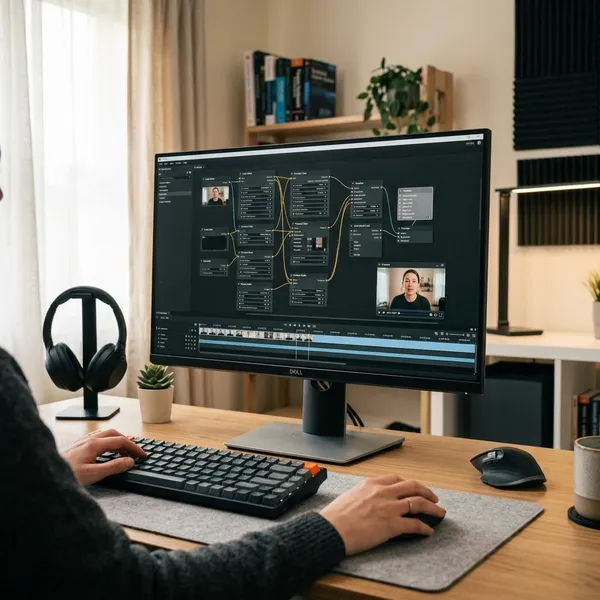
This is where most of the quality is won or lost. A complex ComfyUI setup can create beautiful motion, but LiveAvatar preparation rewards control: fewer surprises, fewer identity shifts, and fewer moving parts that HeyGen has to interpret.
Build a consistent character
Lock down the character before you worry about style. Use the same reference direction, similar lighting, and stable clothing throughout the clip. If you compare two takes, choose the one with the least face drift, even if another version looks more cinematic.
For a temporary social post, a small styling change may not matter much. For a reusable avatar that will represent a brand or course, even mild inconsistency can become distracting because the avatar may carry that instability into later videos.
Keep the camera position stable
Keep the virtual camera mostly fixed. The subject can blink, nod, and shift naturally, but the viewpoint should not push in, orbit, or swing between angles. A steady chest-up frame gives HeyGen a clearer read on the face and mouth.
Create natural speaking motion
The motion should feel like someone talking to a camera, not like a loop created to show off animation. A quick practical check: mute the clip and watch only the face. If the mouth, eyes, and posture still suggest calm speech, you are closer to a usable source.
Export one clean video file
Export a single file without captions, logos, split screens, transitions, or decorative overlays. Use a format that plays reliably, then watch the full export from start to finish before upload. Look for dropped frames, sync issues, flicker, face distortion, or any moment where the subject becomes hard to read.
How to create the LiveAvatar in HeyGen
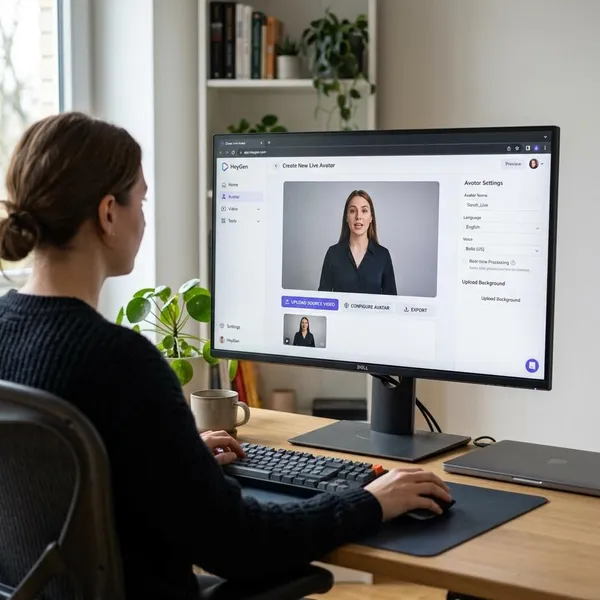
Once the ComfyUI clip is clean, the HeyGen part is mostly about choosing the right creation path and not rushing the review steps. LiveAvatar depends on source performance footage, so it should not be treated the same as a still-image animation workflow.
Upload the source video
Upload the final export to the LiveAvatar or custom avatar area in HeyGen. Do not upload an earlier draft "just to see" if you already noticed unstable framing, drifting identity, or unclear audio; those are exactly the issues that tend to waste processing time.
Complete the consent step
Complete the consent and verification process exactly as HeyGen requests it. Avatar creation involves likeness use, so this step matters even when the source was generated or prepared through ComfyUI. If the avatar is for a team, client, or public-facing project, make sure the usage rights and platform rules are clear before relying on it.
Submit the avatar for processing
Submit the avatar only after the file passes your own basic checks. If it is rejected or produces a weak result, review the source video first rather than changing random settings. The usual fixes are steadier framing, a more consistent character, better facial visibility, or cleaner audio.
Test the avatar after approval
Start with short scripts and compare the output against the source clip. If the avatar handles calm explainer lines well but struggles with energetic copy, use it where it performs naturally instead of forcing every style through the same avatar. For long-term use, save notes from each test so the next ComfyUI source clip is easier to improve.
Conclusion
The best result usually comes from a controlled source clip, not the most ambitious one. If your ComfyUI video keeps the same character, holds a steady camera, shows natural speech and pauses, and exports as one clean file, HeyGen has a much better chance of creating a LiveAvatar you can actually reuse. When in doubt, make a short test first, judge the weak points honestly, and rebuild the source before committing it to a bigger workflow.