What Are the Best Video Editing Apps for iPhone?
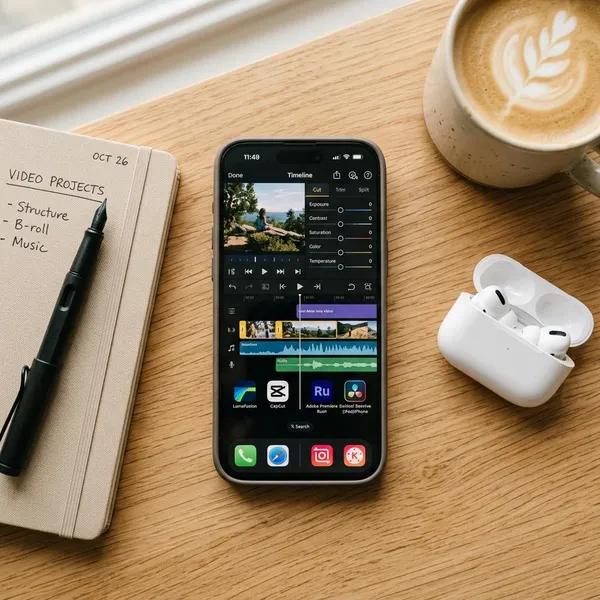
The best iPhone video editing app depends less on which one has the longest feature list and more on what you actually make. If you searched for an app editor video iphone option, start with your main video type: CapCut or InShot for fast social clips, VN for free everyday editing, iMovie for simple personal videos, Premiere for longer structured projects, and LumaFusion when you need serious mobile control.
Best iPhone video editing apps
The easiest mistake is choosing the most popular app and hoping it fits every project. A one-minute TikTok, a family holiday video, and a 15-minute YouTube tutorial all need different tools. Before comparing features, decide whether you care most about speed, clean exports, audio control, templates, or a proper multi-track timeline.
CapCut for fast social edits
CapCut is the strongest pick if your videos are mostly TikToks, Reels, Shorts, or quick vertical posts. It is fast, trend-aware, and packed with tools that save time, especially auto-captions, templates, effects, music timing, and quick resizing.
VN for free all-around editing
VN is a good middle ground for people who want more control than iMovie without jumping into a paid pro editor. It gives you a real timeline, more audio flexibility, subtitles, speed changes, and enough layering for everyday projects.
- Best for: mini vlogs, school projects, hobby videos, product clips, and regular social posts.
- Check first: whether your export is clean, watermark-free, and in the quality you need.
- Avoid if: you only want the simplest possible trim-and-share workflow.
iMovie for simple beginner edits
iMovie is still one of the easiest choices for basic editing because it is free, clean, and already made for Apple users. If you mainly trim clips, add music, join a few scenes, or make a quick family video, it usually does the job without forcing you to learn much.
Adobe Premiere for long-form editing
Adobe Premiere makes more sense when your videos need structure: talking-head clips, tutorials, interviews, vlogs, lessons, or longer YouTube-style edits. Its value is not that it feels the flashiest on a phone; it is better for keeping a project organized and focused on pacing.
Check Adobe's current mobile app details before planning your workflow around it, because names, free access, and paid features can change by region and account. If you already use Adobe tools on desktop, Premiere is more appealing than it is for someone who only wants occasional phone edits.
LumaFusion for advanced editing
LumaFusion is the serious mobile editor in this group. It is best for creators who want multiple tracks, stronger audio control, color tools, external file handling, and a timeline that feels closer to desktop software.
It is worth considering if your iPhone is part of a real production setup: external microphone, planned shots, B-roll, voiceover, graphics, and careful exports. If you only add music to short clips, it is probably more app than you need.
InShot for quick vertical videos
InShot works well when you want a simple vertical video editor without too much clutter. It is especially useful for Instagram Stories, casual Reels, food clips, beauty videos, quick travel moments, and text-over-video posts.
Compared with CapCut, InShot feels less driven by trends and AI effects. That can be a benefit if you just want to crop, trim, add text, adjust music, and publish without digging through lots of extras.
Which iPhone video editor fits your content?
Choosing by content type is usually faster than comparing every feature. A creator posting three short clips a day needs a different app from someone editing one careful YouTube video per week. Match the app to the work you repeat most often, not the most advanced project you might do once.
| What you make most | Best first choice | Why it fits |
|---|---|---|
| Short social clips | CapCut or InShot | Fast vertical editing, text, music, captions, and social-ready exports. |
| Everyday mixed projects | VN | Free-friendly timeline editing with more control than beginner apps. |
| Simple personal videos | iMovie | Easy, free, and enough for basic trimming, titles, and music. |
| YouTube-style videos | Premiere or LumaFusion | Better for longer timelines, voice, pacing, and more structured edits. |
| Advanced mobile projects | LumaFusion | More tracks, precision, audio control, and export flexibility. |
How to choose an iPhone video editing app
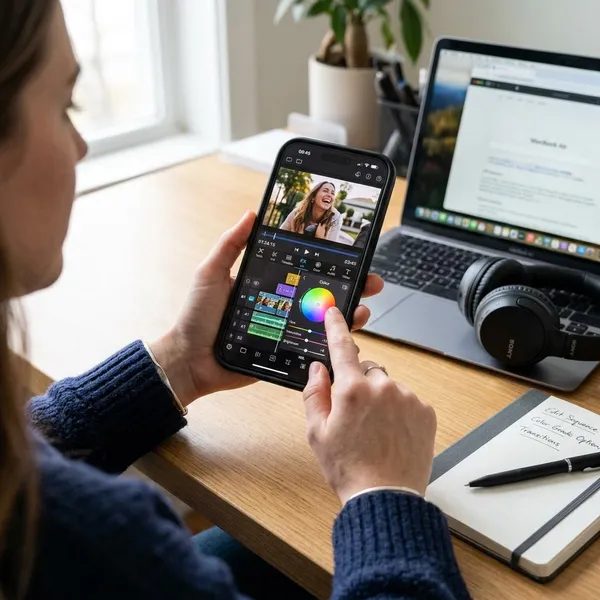
The best way to choose is to make one small test project before paying for anything. Use the same clips, the same music, and the same export target in two apps. You will learn quickly which app feels natural, which one hides the tools you need, and which one produces a file you are happy to post.
Start with your video type
Pick the app around the format you make most often. Vertical social clips need fast cropping, captions, music, and text. Longer horizontal videos need a timeline that stays readable, better audio handling, and exports that hold up after upload.
- Posting often on TikTok, Instagram, or Shorts: start with CapCut or InShot.
- Making mixed everyday videos: try VN before paying for a pro app.
- Editing simple personal memories: use iMovie first.
- Building long or detailed projects: compare Premiere and LumaFusion.
Check the free limits
Free apps can still have limits that matter. Before you spend an hour editing, check three things: watermark rules, export resolution, and whether the specific tools you want are locked. Captions, premium effects, stock music, templates, and high-quality exports are common places where restrictions appear.
This matters most if you publish regularly. A watermark that feels acceptable for one casual clip can look unprofessional on a small business video, a portfolio piece, or a YouTube channel upload.
Choose your editing depth
Editing depth is about how much control you actually use, not how much the app advertises. If your normal edit is five clips, music, and a title, a simple app is the better choice. If you keep adjusting voice levels, cutting to B-roll, adding captions, and fixing pacing, you need a stronger timeline.
Check your export needs
Export settings are easy to ignore until the finished video looks soft, has badly placed captions, or includes a watermark you did not expect. Before committing to an app, export a short test clip and watch it outside the editor.
- Choose your main platform: TikTok, Instagram, YouTube, WhatsApp, or private sharing.
- Check the shape: vertical 9:16, square, or horizontal 16:9.
- Export a short sample in the quality you plan to use, such as 1080p or 4K if available.
- Review the final file for watermarking, subtitle placement, audio balance, and compression.
Conclusion
Start with the app that matches your most common project, not the one with the most impressive feature list. CapCut and InShot make sense for fast social posts, VN is the safest free all-rounder, iMovie is enough for simple personal videos, Premiere suits more structured long-form work, and LumaFusion is the one to choose when mobile editing needs to feel close to a real production workflow.