Can Adobe Reader Turn PDFs into Word?
Adobe Reader is not usually the tool that converts a PDF into an editable Word document. If you searched for adobe reader convert pdf to word software, the practical answer is that Reader is mainly for opening, viewing, commenting, filling, and signing PDFs; conversion is handled through Adobe Acrobat or Adobe's online PDF-to-Word converter.
Which Adobe option should you use?
Start by checking two things: whether the PDF has selectable text, and how often you need to convert files. A normal text-based PDF can often be converted quickly online, while a scanned document or a file you handle for work every week is usually better in Acrobat.
| Your situation | Best Adobe choice | Why it fits |
|---|---|---|
| One quick file with no sensitive details | Adobe online converter | Fast, browser-based, no desktop setup needed |
| Regular office, school, or client documents | Adobe Acrobat | More control, local workflow, easier review |
| Scanned paper, photo, or archive document | Acrobat with OCR | Turns image-based text into editable Word text |
| Private contracts, financial files, or internal documents | Desktop Acrobat | Avoids unnecessary online uploading |
Online converter for occasional files
The online converter is the easiest choice when you only need to convert a file once in a while. It is useful for a school handout, a short report, a letter, or a simple invoice that already contains selectable text.
- Good fit: quick, low-risk files that do not need heavy formatting control.
- Use caution: private, legal, financial, or confidential work documents.
- Not ideal: large batches, complex layouts, or poor-quality scans.
Export PDF for basic conversions
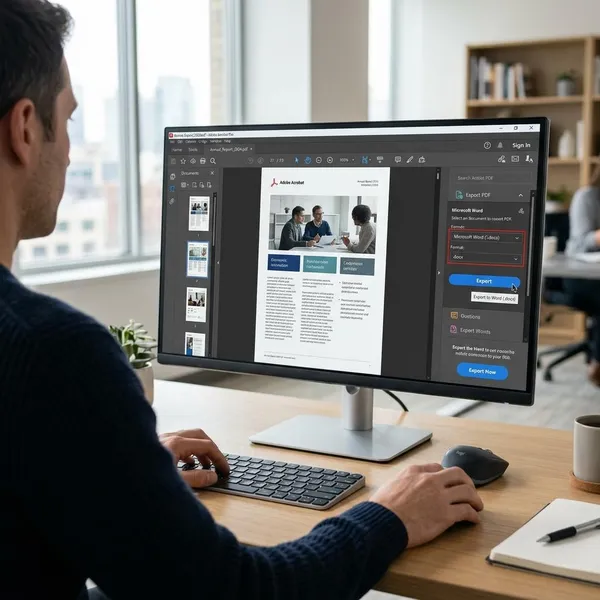
Adobe's Export PDF feature is the normal route when you want a PDF turned into a Word file while keeping the layout reasonably intact. It works best when the PDF was originally made from a digital document, such as a Word file, report, form, or presentation handout.
If you open the file in free Reader and cannot find the export controls you expected, that is not unusual. Reader may point you toward a paid service or online workflow, while Acrobat gives you the fuller desktop export experience.
Acrobat for regular desktop use
Acrobat makes more sense if converting PDFs is part of your routine. Someone who edits client forms every week, updates internal documents, or works with multi-page reports will usually save time with a local Acrobat workflow instead of uploading files one by one in a browser.
The bigger advantage is control. You can open the original, export it, compare the Word file, correct layout issues, and keep versions in the same folder without switching between tools.
Acrobat OCR for scanned documents
Use Acrobat OCR when the PDF is really a scan or photo of a page. A simple test is to try selecting a line of text in the PDF. If the whole page behaves like one image, OCR is probably needed before the Word file becomes genuinely editable.
How to convert PDF to Word in Acrobat
Acrobat is the better choice when you want the conversion to happen on your computer and you need a more dependable result. Before exporting, quickly check the source file: rotated pages, blurry scans, cropped edges, and unusual fonts are the problems most likely to create a messy Word document.
Open the PDF
Open the file in Adobe Acrobat rather than in a browser preview or a basic PDF viewer. Confirm that the pages are complete, readable, and in the right order before you export.
Select Export a PDF
Choose Export a PDF from Acrobat's tools or side panel. If you cannot access that feature and only see basic viewing or commenting tools, you may be in Reader rather than Acrobat.
Choose Microsoft Word
Select Microsoft Word as the output format when your goal is to edit the text, reuse sections, update a document, or send it to someone who works in Word.
- Choose Word for editing: reports, letters, resumes, forms, and written content.
- Do not expect perfection: complex tables, columns, and graphics may still shift.
- Review before sharing: open the converted file before you start making changes.
Select DOC or DOCX
DOCX is the safer default for most modern Word users. Choose DOC only when the file must work with an older system or a workplace process that still asks for the older format.
Export and save the file
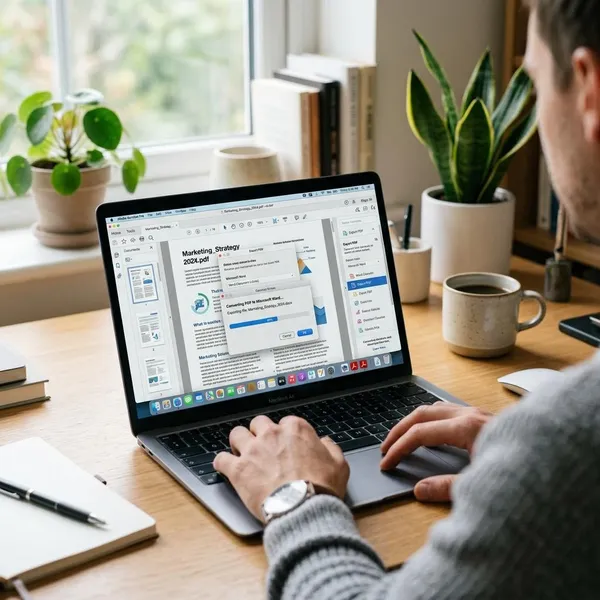
Export the file, save it somewhere easy to find, and open the Word version immediately. Do not assume the conversion is finished just because the file opened successfully.
Compare the Word file with the PDF where accuracy matters most: tables, page breaks, headers, footers, names, figures, and numbered lists. For a casual document, a quick scan may be enough; for a formal file, check it page by page.
How to convert PDF to Word online
Adobe's online converter is best for a temporary or low-effort situation: you need one Word file, you do not have Acrobat installed, and the PDF is not especially sensitive. It is convenient, but it does mean sending the file through an online service, so use more judgment with private documents.

Open Adobe's online converter
Use Adobe's official PDF-to-Word converter in your browser. This is especially worth doing if you are on a shared computer or a borrowed laptop and do not want to install software.
Avoid random upload sites for documents that contain IDs, client details, salary information, bank data, or private signatures. A quick conversion is not worth losing control of a sensitive file.
Upload the PDF
Upload the cleanest version of the PDF you have. If you have several copies with similar names, take a moment to choose the final one, not an earlier draft or a low-quality scan.
Wait for the conversion
Let the browser process finish before refreshing the page or closing the tab. Simple text PDFs usually convert faster than image-heavy reports, scanned files, or documents with many pages.
- If it stalls: check your connection before uploading again.
- If the file is huge: consider using Acrobat for a steadier desktop workflow.
- If the result is messy: the source PDF may need OCR or cleanup first.
Sign in if required
Adobe may ask you to sign in before downloading or saving the converted file. That does not necessarily mean the conversion failed; it may simply be part of the current Adobe workflow.
Download the Word file
Download the converted document and open it in Word or a compatible editor right away. If it is a resume, application, report, or client document, save a clean copy before editing so you can return to the first converted version if needed.
How Adobe converts scanned PDFs
A scanned PDF is different from a normal digital PDF because the page may be only an image. Adobe uses OCR, or optical character recognition, to identify letters and numbers inside that image and rebuild them as editable Word text.
OCR recognizes image-based text
OCR looks at the shapes on the scanned page and tries to match them to characters. That is why it can turn a printed form, old archive page, signed letter, or phone photo into a Word document you can search and edit.
Clear scans improve accuracy
A straight, sharp, well-lit scan gives OCR much better information to read. A dark phone photo taken at an angle may produce broken words, missing letters, or strange line breaks.
- Before converting: rotate sideways pages and remove obvious shadows if possible.
- For paper documents: re-scan if the text is blurry or cropped.
- For tables: expect more cleanup than with plain paragraphs.
Correct language settings improve results
Language settings matter because OCR uses language patterns to interpret text. If a document is in English but OCR is expecting another language, even clear words can turn into odd substitutions.
Manual review catches recognition errors
Always review scanned-document conversions before using the Word file. Focus on the details a computer is most likely to misread: dates, totals, account numbers, names, addresses, table cells, and headers.
Conclusion
Reader is fine for viewing and simple PDF tasks, but it is usually not the right place to rely on for PDF-to-Word conversion. Use the online converter for a quick, occasional, low-risk file; use Acrobat when conversion is part of your regular work or when the document should stay local; and use OCR when the PDF is a scan rather than real selectable text.