What Can You Create with Adobe Express Video Editor?
If you want quick, good-looking videos without learning a full editing timeline, the Adobe Express video editor is usually a sensible choice. It is strongest for short social clips, simple promos, explainers, and slideshows where speed matters more than detailed control. If you need frame-level edits, heavy color work, or complex audio mixing, you will outgrow it fast.

What can the Adobe Express video editor do?
Adobe Express covers the editing jobs most casual creators actually need: cutting clips, adding text, improving audio, using templates, and exporting a finished video for sharing. The main thing to understand is its role. It is not trying to be Premiere Pro in a browser; it is built for fast, clean edits that do not require technical setup.
Trim, split, and combine clips
Trimming and combining clips is where Adobe Express feels most useful. You can remove dead space, split longer footage into smaller pieces, and arrange clips into a simple sequence without dealing with a complicated professional timeline.
Add text, captions, and graphics
Text is not just decoration here. Short titles, labels, captions, and simple graphics help viewers understand the point quickly, especially on mobile where many people watch with the sound off.
- Use captions when speech carries the message.
- Use short labels for steps, product features, prices, or dates.
- Keep text away from screen edges so it does not get hidden by social app buttons.
- Avoid overloading the frame; one clear message usually works better than three competing lines.
Add music and voice-overs
Adobe Express lets you add background music, upload audio, and record voice-over, which is enough for many tutorials, slideshows, and quick business videos. The practical mistake to avoid is making music too loud. If people have to strain to hear speech, the video feels amateur even when the visuals look good.
Apply transitions and animation
Transitions and animation can make a basic edit feel smoother, but they work best when used lightly. A fade can suit a photo slideshow or memory video, while clean cuts often work better for tutorials, demos, and product clips.
Resize videos for social media
Resizing is one of the biggest time-savers. You can adapt a project for vertical, square, or horizontal formats instead of rebuilding the whole video for each platform.
Check the framing after every resize. Text that looked perfect in a horizontal YouTube-style version may be too small or partly hidden in a vertical Reel. This matters most for creators repurposing one idea across several platforms, such as turning a full product demo into a short TikTok teaser.
Is the Adobe Express video editor free?
Adobe Express has a free plan, and it can be enough if you edit occasionally or only need basic tools. The paid plan becomes more relevant when you want broader template access, more premium assets, brand features, or heavier use of AI-assisted tools.
Editing tools included in the free plan
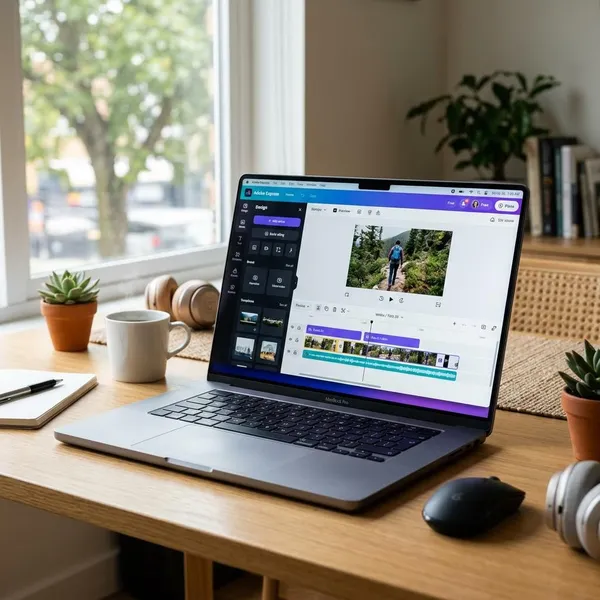
The free plan usually gives you the essential workflow: upload media, trim clips, add text, use basic design elements, and export a shareable video. That is enough for testing whether the interface feels comfortable before paying for anything.
Templates and assets that need Premium
Some templates, stock photos, design elements, fonts, and brand-focused features sit behind Premium. This matters less for one-off personal videos and much more for people who need fresh-looking content repeatedly.
| Use case | Free may be enough when... | Premium is worth checking when... |
|---|---|---|
| Personal slideshow | You only need simple text, music, and export. | You want a specific premium template or asset. |
| Small business promo | You post occasionally and can work with basic layouts. | You need brand consistency across many campaigns. |
| Regular social content | You make simple clips and do not mind limited choices. | You need more templates, assets, and faster production. |
AI credit limits by plan
AI features can be limited by plan, and Adobe may change the exact allowances over time. Before depending on automatic captions, generative tools, or clip-making features for regular publishing, check the current plan details inside Adobe Express or on Adobe's pricing page.
How to edit a video in Adobe Express
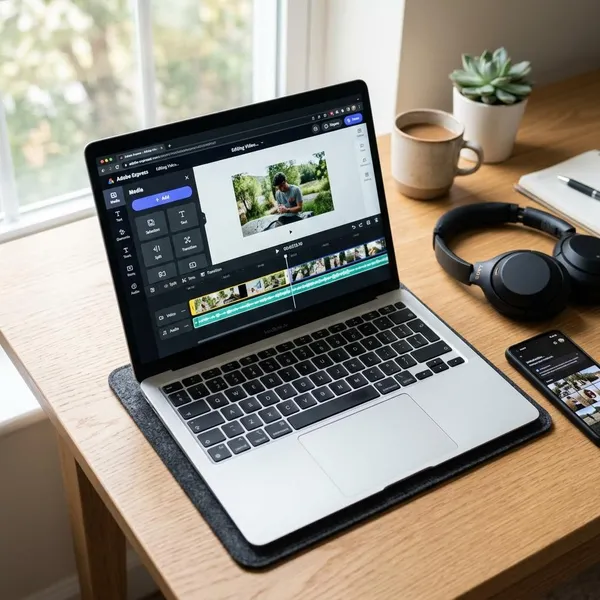
The best way to edit in Adobe Express is to build the video in the same order a viewer will experience it: choose the format, arrange the clips, tighten the timing, add text and audio, then preview before export. Beginners often do this backwards by adding effects first, then discovering the video itself feels too long or unclear.
Before you start, decide the final destination. A vertical social clip, a landscape presentation video, and a square product post need different framing choices from the beginning.
Choose a template or start from scratch
Use a template when you want speed and do not want to make every design choice yourself. Start from scratch when the footage is unusual, the message is very specific, or you want more control over pacing and layout.
Upload and arrange your clips
Upload your videos, photos, and audio files, then place them in a rough order before trimming. This gives you a clear shape to work with and prevents wasting time polishing clips you may not keep.
- Open with the point: show the result, product, or key moment early.
- Group similar clips: keep related shots together so the story is easier to follow.
- Save weaker clips for last, if at all: do not bury the best footage in the middle.
Trim clips and adjust timing
Trim anything that does not add information, emotion, or momentum. Most beginner videos improve quickly when pauses, repeated moments, and slow starts are removed.
Pacing depends on the job. A product teaser may need quick cuts and short text. A memorial slideshow or graduation recap can breathe more slowly. Adobe Express is simple enough that you can test the rhythm by previewing, trimming, and previewing again.
Add text and balance the audio
Add text only after the main sequence works. Titles, captions, and labels should clarify the video, not cover for a messy edit.
Audio deserves a final pass of its own. Lower the music when someone is speaking, and preview with ordinary laptop or phone speakers rather than only headphones. That catches balance problems closer to how most people will actually watch.
Preview and download your video
Preview the full video before downloading, even if the edit looks finished. Look for cut-off text, awkward transitions, uneven volume, misspelled captions, and clips that stay on screen too long.
- Preview once for story and pacing.
- Preview again for text placement and spelling.
- Check the audio level on the device most viewers will use.
- Download the finished file, usually as an MP4, when everything looks clean.
Which videos suit Adobe Express best?
Adobe Express is best for videos where clarity and speed matter more than advanced production. It shines when you need something finished today, not when you need deep control over every frame.
Social media clips
Social clips are one of the strongest matches because Adobe Express handles the common jobs: vertical formatting, captions, bold text, short edits, and quick exports. That is useful for TikTok, Instagram Reels, YouTube Shorts, Facebook Stories, and similar formats.
The main risk is making a social clip look crowded. Keep the message narrow: one tip, one product, one announcement, or one moment. Adobe Express gives you plenty of visual options, but short videos usually work better when they feel focused.
Product promos
For a small shop, handmade seller, local service, or side project, Adobe Express can turn basic phone clips into a more polished promo. You can show the product, add a benefit-focused headline, include a price or offer, and export it in the right shape for social media.
It is less suitable when the video needs advanced product lighting correction, complex motion graphics, or a high-end commercial finish. For quick launches, seasonal offers, and simple feature highlights, it is often enough.
Simple tutorials and explainers
Adobe Express works well for tutorials that need a clear sequence rather than advanced editing. A teacher explaining a short process, a hobby creator showing a few steps, or a business answering a common customer question can usually get a clean result with clips, labels, captions, and voice-over.
Keep each step short. If a tutorial becomes long, technical, or full of tiny visual details, a timeline-based editor may give you better control.
Photo slideshows
Photo slideshows are an easy win. Add images, set the timing, choose music, and use light transitions to turn a folder of photos into something more watchable.
This works for birthdays, travel recaps, graduations, community events, and simple presentation videos. The key is order: arrange the photos so they tell a small story instead of dropping every image in randomly.
Conclusion
Adobe Express is the right video editor when you want a fast, simple way to make short videos look finished without learning professional software. Start with the free plan if your needs are occasional or basic, and only consider Premium if templates, assets, branding, or AI tools would save you real time. For everyday social clips, promos, tutorials, and slideshows, it is a practical choice; for precision editing or serious production work, move to Premiere Pro instead.