Is Adobe Express the Right PDF Editor for You?
Adobe Express can edit a PDF when the file is simple enough to convert cleanly, but it is not the same as using Acrobat. It is a good first choice for quick fixes, page cleanup, combining files, and light design edits; it is a weaker choice for secured files, long documents, heavy scans, or anything where the layout must stay exact.

What can Adobe Express do with PDFs?
Adobe Express is best for everyday PDF jobs that do not need deep technical control. Think of a one-page flyer with an outdated date, a packet of forms that needs reordering, or a few image files that need to become one shareable PDF.
Edit text and images
Adobe Express can let you change text, replace images, move elements, and adjust simple design blocks after the PDF is converted into an editable project. This works best on clean PDFs made from standard digital documents, not on flattened scans or complex production files.
Adjust page layouts
For basic page fixes, Adobe Express is straightforward. You can usually rotate, delete, reorder, and add pages without rebuilding the entire document.
- Good fit: a scanned form packet with one upside-down page.
- Good fit: a school handout where the cover page needs to move first.
- Less ideal: a magazine-style PDF with columns, overlays, and tight image placement.
Convert files to PDF
Adobe Express can convert supported files such as documents, presentations, and images into PDF format. This is useful when you want the recipient to view a file without worrying as much about app versions or accidental edits.
Export PDF content
Adobe Express can also help you reuse PDF content, depending on the available quick action. You may be able to turn pages into images or bring PDF content into an editable project for repurposing.
This is more reliable with clean digital PDFs than with old scans. If you only need a page preview for an email or a visual from a simple handout, it can be quick. If you need accurate text extraction from a poor scan, an OCR-focused tool is usually safer.
Combine PDF files
Combining files is one of the strongest everyday uses for Adobe Express. It can turn several PDFs, and sometimes other supported file types, into one easier-to-send document.
This is handy for expense receipts, application materials, onboarding forms, or a small client packet. Before sending the merged file, scan the page order once from start to finish; the most common mistake is not the merge itself, but sending pages in a confusing order.
Organize PDF pages
Adobe Express can help clean up a PDF by removing blank pages, moving sections, rotating pages, or extracting only the part you need. That can make a messy file easier to read without touching the actual content.
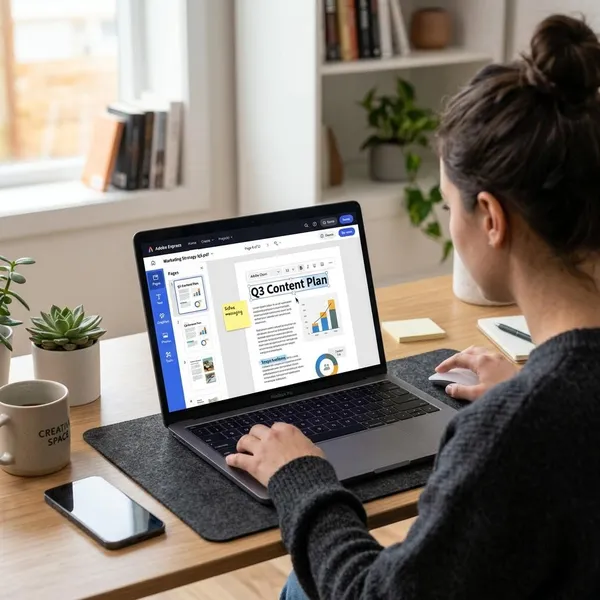
How to edit a PDF in Adobe Express
The safest workflow is to treat Adobe Express as a converter first and an editor second. Upload the PDF, check how well it converts, make only the changes you need, then review the exported PDF outside Adobe Express before sharing it.
Open Adobe Express
Open Adobe Express in your browser and sign in with the account you actually want to use. This matters if you have both a personal Adobe login and a school or work account, because available tools can differ by plan or organization settings.
Select Start from your content
Choose the option that starts from your own file rather than a blank design or template. If the interface wording changes, look for an upload-based route tied to PDF editing, converting, combining, or organizing.
Upload the PDF
Upload the PDF and wait for Adobe Express to process it. If it fails, check three things before trying again:
- File size: keep it under the stated upload limit.
- Page count: split long PDFs before importing.
- Security: remove password protection only if you have permission to edit the file.
Edit the converted project
Once the file opens as a project, make the necessary edits first: change the wrong date, replace the outdated logo, remove the extra page, or fix the contact details. Avoid redesigning the whole document unless the import looks very clean.
For a temporary flyer or internal handout, a small visual mismatch may be acceptable. For a formal proposal, certificate, or public-facing brand file, even a slight font or spacing change may be enough reason to switch to Acrobat.
Check the formatting
Compare the edited version with the original before downloading. Pay closest attention to line breaks, tables, bullet lists, headings, logos, signatures, and anything near the edge of the page.
Download the new PDF
Download the finished PDF with a clear file name, such as a date or version label. Then open the downloaded file in a normal PDF viewer before emailing, printing, or uploading it.

Adobe Express PDF limits
The biggest limits are not hard to understand: file size, page count, password protection, fonts, layout complexity, and scan quality. Check those before you start, because they decide whether Adobe Express will feel quick or frustrating.
| Check first | Why it matters | Better choice if it fails |
|---|---|---|
| Size and pages | Large files may not upload or may process slowly. | Split or compress the PDF first. |
| Editable text | Scans may behave like images instead of text. | Use a stronger OCR tool. |
| Layout sensitivity | Fonts and spacing can shift after import. | Use Acrobat for exact control. |
Files must be under 99MB
Adobe Express PDF workflows commonly require files to be under 99MB. A normal short document is usually fine, but high-resolution scans, image-heavy reports, and photo-filled PDFs can reach that limit quickly.
If the upload fails, do not keep retrying the same file. Compress it, remove unnecessary images, or split it into smaller parts so you can edit and check each section more reliably.
PDFs can have up to 99 pages
Adobe Express commonly supports PDFs up to 99 pages for these quick actions. That is enough for short reports, packets, forms, and classroom materials, but not for long manuals or large record archives.
For a 120-page file, split it by section before uploading. Smaller files are easier to process and easier to review after export.
Password protection must be removed
Password-protected PDFs usually need to be unlocked before Adobe Express can edit or convert them. Only remove protection if you own the file or have permission to modify it.
Be extra careful with bank statements, medical records, legal documents, and workplace files. An online editor may be convenient, but privacy and internal rules still come first.
Uncommon fonts may be replaced
If the original PDF uses a font Adobe Express cannot match, the tool may substitute another one. The words may still be editable, but the page can look different because the new font changes spacing and line breaks.
This is a small issue in a casual worksheet and a bigger issue in a branded flyer or certificate. If the exact look matters, compare the export against the original before sending it anywhere.
Complex layouts may change
PDFs with columns, layered graphics, tight tables, overlapping objects, or precise spacing may not rebuild perfectly after import. Adobe Express can preserve the general idea of the page, but it is not designed for print-level layout repair.
- Usually okay: a simple one-page notice with text and one image.
- Needs caution: a brochure, catalog page, detailed invoice, or designed report.
- Better in Acrobat: files where alignment, branding, or legal formatting must stay exact.
Some scans may not edit cleanly
Scanned PDFs are unpredictable because the page may be an image rather than real text. Clear printed scans with straight pages and strong contrast have a better chance; blurry, shadowed, handwritten, or skewed scans may not edit cleanly.
Conclusion
Adobe Express is worth trying first when the PDF is short, simple, and low-risk, especially for quick edits, page cleanup, conversion, or combining files. The moment the document has sensitive content, strict formatting, heavy scans, or a layout you cannot afford to disturb, Acrobat is the more sensible choice. A one-file test before using it on important documents will tell you quickly whether the result is clean enough.