Is Adobe Acrobat the Right PDF Editor for You?
If you want an Adobe Acrobat PDF editor, the first thing to decide is whether you need true content editing or just PDF handling. Reader and Adobe's online tools are often enough for viewing, signing, commenting, compressing, or converting a file once in a while. If you need to change existing text, work with scans, redact private details, or compare versions, you will usually need a paid Acrobat plan.
What can Adobe Acrobat do?
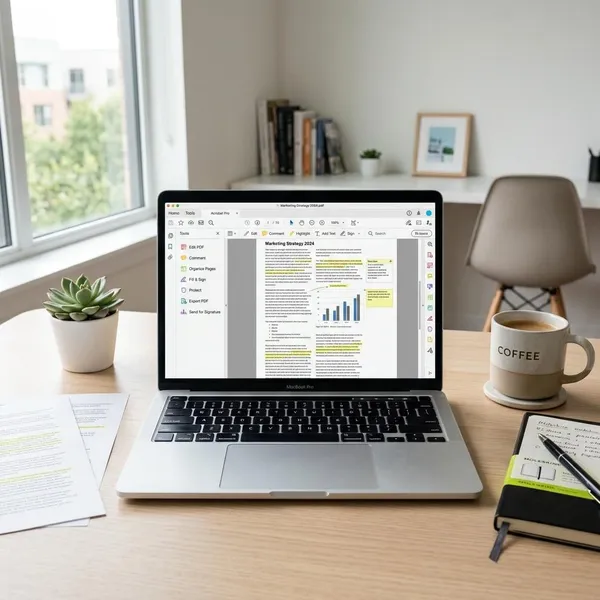
Adobe Acrobat is useful because it treats PDFs as working documents, not just files you open and read. The most important split is simple: light tasks such as reading, commenting, and signing are available in free or browser-based tools, while deeper editing and document control usually sit in Standard, Pro, or newer AI-focused options.
Edit text and images
Acrobat can change text and images in many PDFs, especially files exported cleanly from Word, PowerPoint, or another document editor. That is handy when the original file is missing and you only need to fix a typo, update a date, replace a logo, or move an image slightly.
Convert PDF files
Conversion is one of Acrobat's strongest everyday features. You can turn PDFs into formats such as Word, Excel, PowerPoint, or images, and you can also create PDFs from editable files when you want a more stable version to share.
- Use conversion for reuse: send a PDF report back into Word when you need to rewrite it.
- Use PDF export for sharing: turn a proposal or invoice into a format that keeps its layout.
- Check the result: tables, columns, and scanned pages may still need manual cleanup.
Organize and combine pages
Page tools are often more useful than they sound. You can merge several PDFs, split one large file, rotate pages, delete blank pages, or pull out only the pages someone actually needs.
Fill and sign forms
Filling and signing is one of the easiest wins in Acrobat. You can type into form fields, add checkmarks, place initials, and apply a saved signature without printing the document.
Edit scans with OCR
OCR turns scanned pages into searchable and selectable text. This matters when a PDF is really just a picture of a page, such as a scanned contract, receipt, archived letter, or printed form.
Compare and redact documents
Comparison and redaction are Pro-level reasons to choose Acrobat. Compare helps you see what changed between two versions of a document, while redaction is meant to permanently remove sensitive text or areas before sharing.
Protect PDFs with passwords
Acrobat can add passwords and permission limits, such as restricting printing, copying, or editing. This is useful for reducing casual access when emailing invoices, records, forms, or internal documents.
Password protection is not a complete security system. If the file contains highly sensitive information, treat it as one layer only and also consider how the file is stored, shared, and backed up.
Can you edit PDFs for free?
You can do some PDF editing for free, but "edit" means different things depending on the task. If you mean commenting, signing, filling forms, compressing, combining, or converting a file, Adobe's free tools may cover it. If you mean rewriting existing text or editing scanned content, a paid plan is usually the realistic option.
Reader supports viewing and comments
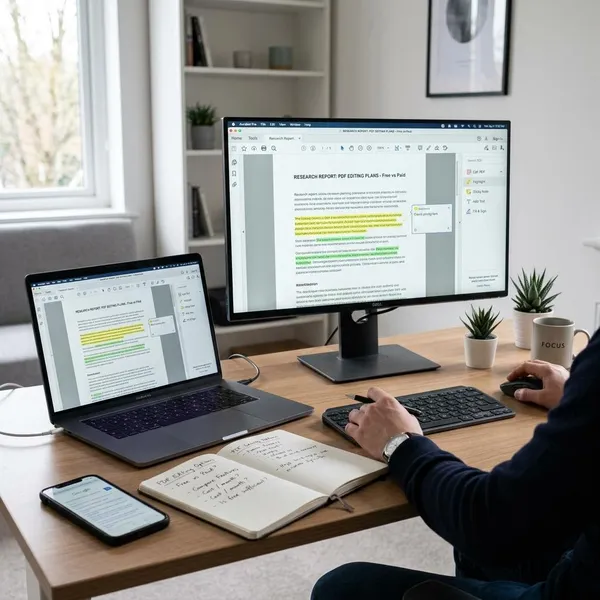
Acrobat Reader is the right starting point if you mainly open PDFs, print them, highlight text, or leave comments. A student reviewing lecture notes or a family member checking a bill does not need a subscription for that kind of use.
Reader supports filling and signing
Reader also handles many fill-and-sign tasks at no cost. If your main PDF job is adding your name, date, initials, and signature to finished documents, Reader may be all you need.
The boundary is content control. Signing a form is different from changing the form itself; once you need to rewrite the original wording or rebuild the layout, Reader is no longer enough.
Online tools handle basic tasks
Adobe's browser tools are best for quick jobs: compress a PDF before emailing it, combine a few files, rotate pages, or convert a document without installing software. They are especially useful on a Chromebook, shared computer, or temporary device.
- Good fit: one-off tasks with non-sensitive files.
- Less ideal: daily editing, large batches, or confidential documents.
- Check first: upload limits, sign-in requirements, and whether the tool saves formatting well enough.
Full text editing usually requires a paid plan
Changing existing text, replacing images, editing more complex layouts, and working seriously with OCR normally pushes you into a paid Acrobat plan. That is the point where you are no longer just handling a PDF; you are maintaining it as a working document.
Adobe Acrobat plans compared
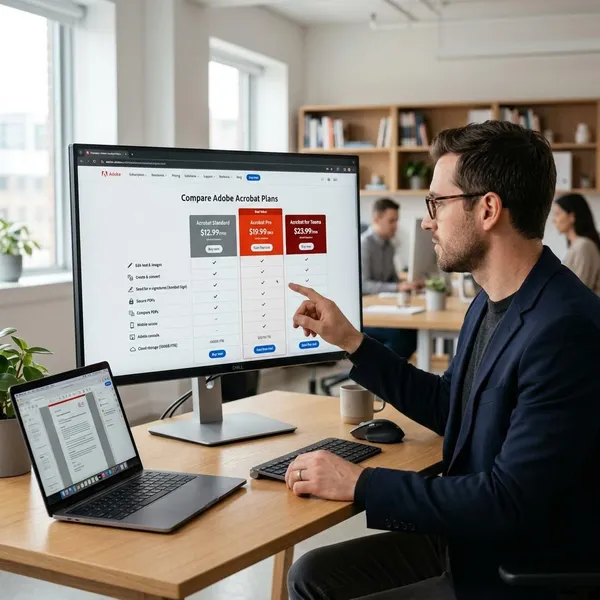
Adobe's Acrobat options make more sense when you compare them by job, not by feature count. Reader is for access, online tools are for quick tasks, Standard is for regular editing, Pro is for advanced control, and Studio is for people who want more AI help with document-heavy work.
| Option | Best for | Think twice if |
|---|---|---|
| Reader | Viewing, commenting, filling, and signing | You need to change existing PDF text |
| Online tools | Fast browser tasks such as compressing or combining | You work with sensitive files or large batches |
| Express | Basic PDF and content tasks | You need deeper desktop editing |
| Standard | Regular office editing and conversions | You need OCR, redaction, or comparison |
| Pro | Scans, redaction, comparison, and advanced workflows | You only sign forms occasionally |
| Studio | AI-supported reading, summarizing, and document analysis | Your main need is simple page editing |
Reader for viewing and signing
Reader is the free option for people who mostly receive finished PDFs. It fits occasional home, school, and admin use: open the file, review it, add a note, fill a form, sign it, and send it back.
Online tools for quick browser tasks
Online tools are the practical choice when you have a small task and do not want to install anything. They are not meant to be a full desktop replacement, but they can save time when you just need to compress, convert, combine, or rotate a PDF once.
Acrobat Express for basic PDF tools
Acrobat Express sits in the lighter-use category. It can make sense if you want approachable PDF tools and simple content features without stepping straight into a more technical Acrobat workflow.
Acrobat Standard for regular editing
Standard is the plan to consider when PDFs are part of your weekly work. It suits people who update invoices, revise proposals, adjust forms, combine pages, and convert documents often enough that free tools start wasting time.
Acrobat Pro for advanced workflows
Pro is the safer choice when scans, confidential information, or version control are part of the job. OCR, redaction, comparison, stronger forms, and review tools are not just extras if you work with contracts, records, finance files, or client documents.
Acrobat Studio for PDF and AI tools
Studio is aimed at people who spend a lot of time reading and understanding documents, not only editing pages. AI-supported summaries and document interaction can be useful for long reports, research packets, policy documents, or contract review.
It is less compelling if your main need is basic editing. Choose Studio when the time saved in reading, comparing meaning, or extracting information matters more than the editing tools alone.
Which Acrobat option should you choose?
Start with the simplest option that covers your repeated work, then move up only when a real limit appears. The best plan for someone signing two forms a month is not the same as the best plan for a consultant editing client PDFs every day or an admin team handling scanned records.
Reader for occasional PDF use
Choose Reader if your PDFs are mostly finished when they arrive. It is the sensible default for reading, printing, commenting, and signing without adding another subscription.
This is the low-risk choice for casual use. If you later need to edit the document itself, you will know exactly what Reader cannot do instead of guessing upfront.
Online tools for quick one-off tasks
Use online tools when the job is small, temporary, and not especially sensitive. Combining two PDFs for an application or compressing a file for email is exactly the kind of task where a browser tool feels efficient.
Do not build a daily workflow around browser tools if you are constantly uploading, downloading, and rechecking files. At that point, desktop Acrobat is usually smoother.
Standard for everyday office editing
Standard is the practical middle choice for regular editing. Pick it when you often need to update text, fix images, reorganize pages, or convert PDFs as part of normal office work.
- Good match: proposals, invoices, templates, handouts, and client documents.
- Warning sign: frequent scanned files or private data that must be removed properly.
- Before buying: test whether your typical PDF layout edits cleanly.
Pro for OCR, redaction, and comparison
Pro is worth considering when accuracy and risk matter. If you work with scanned archives, legal paperwork, financial records, HR files, or multiple contract drafts, its advanced tools solve problems that basic editing does not.
Studio for AI-heavy document work
Studio is most relevant when your bottleneck is reading and extracting meaning from long PDFs. A student dealing with large reading packets, a researcher sorting reports, or a professional reviewing dense documents may benefit more from AI help than from another editing tool.
Conclusion
The smartest Acrobat choice is usually the least advanced option that handles your real workload without workarounds. Start with Reader or online tools for light tasks, move to Standard when editing becomes routine, choose Pro when scans, redaction, or comparisons matter, and consider Studio only if AI-assisted document review would save meaningful time.