Where Can You Find Your Windows Software Version?
If you need to know how to check windows software version, the quickest answer is: use winver for the version and OS build, or use Settings > System > About when you also need the edition and 32-bit/64-bit system type. Check the product name first, then the edition, then the version and OS build if a software installer or support page asks for exact details.

How to check your Windows version quickly
Windows gives you several built-in ways to check the same basic information. The best method depends on what you need at that moment: a quick answer, a clearly labeled screen, copyable text, or a broader technical summary.
| Method | Best when you need | Look for |
|---|---|---|
winver | The fastest check | Windows product name, version, OS build |
| Settings | A readable screen with software and device details | Edition, version, OS build, system type |
systeminfo | Text you can copy into a support message | OS Name and OS Version |
| System Information | A fuller troubleshooting view | OS details, hardware details, BIOS mode, memory |
Use winver for the fastest check
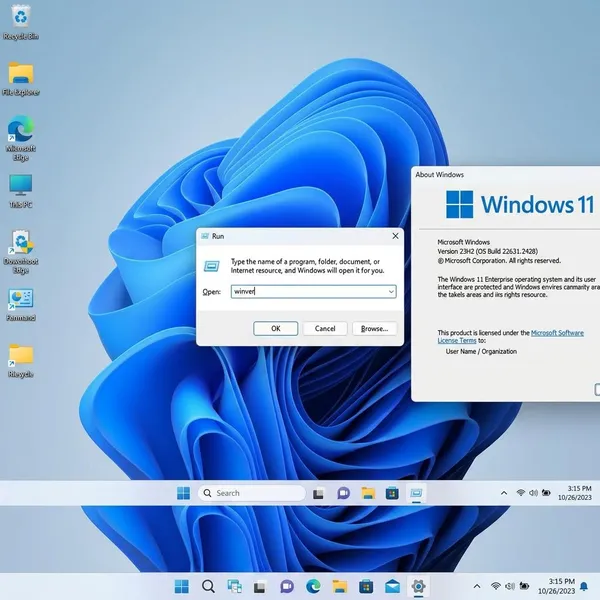
winver is the quickest route when someone simply asks, "What Windows version are you running?" Press Win + R, type winver, and the small About Windows box gives you the product name, version, and OS build without making you search through menus.
This is the method I would use before a quick software install or when a support agent only needs a screenshot of your Windows release. It is not the best choice if you also need to confirm whether the system is 32-bit or 64-bit.
Use Settings for full Windows details
Settings is the better choice when you want the details written out in plain labels. Go to Settings > System > About, then check Windows specifications for the edition, version, and OS build.
- Edition: Home, Pro, Enterprise, or another Windows edition.
- Version: the feature release, such as 22H2 or 23H2.
- OS build: the more exact build number used in troubleshooting.
- System type: found under Device specifications for 32-bit or 64-bit.
Use systeminfo for a command-line check
Use systeminfo when you want copyable text rather than a screenshot. Open Command Prompt or PowerShell, run systeminfo, and look near the top for OS Name and OS Version.
For remote help, this is often cleaner than asking someone to describe what they see. If the full output feels too long, use systeminfo | findstr /B /C:"OS Name" /C:"OS Version" to show only the two most useful lines.
Use System Information for more system details
System Information is useful when the Windows version is only part of the question. Press Win + R, type msinfo32, and check the System Summary page for OS details plus hardware information such as processor, memory, system type, and BIOS mode.
Choose this for a more careful troubleshooting situation, such as checking whether an older device driver, BIOS-related setting, or work tool matches the computer. For a simple "Windows 10 or Windows 11?" check, it is more than you need.

How to check your Windows version in Settings
Settings is the most beginner-friendly option because it puts the important Windows details and device details on one page. Use it when you are comparing app requirements, checking a family member's PC, or confirming whether you need a 32-bit or 64-bit installer.
Open Settings
Press Windows + I to open Settings. You can also open the Start menu and choose Settings, or right-click the Start button and select it from the menu.
Go to System and About
Select System, then open About. On some screens you may need to scroll, especially in Windows 10 or on a smaller laptop display.
Do not rely only on how the desktop looks. Themes, company-managed layouts, and Start menu changes can make Windows 10 and Windows 11 look less obvious than the actual product name shown on this page.
Find Windows specifications
Under Windows specifications, look for the product name and the three details that matter most: edition, version, and OS build. If a software requirement says "Windows 11 23H2 or later," this is the section to compare against.
Check the edition, version, and OS build
Check these fields in order: product name first, edition second, version third, and OS build last if the instructions mention a specific build. That order prevents a common mistake: seeing "Windows 11" and assuming every Windows 11 requirement is met.
- Open Settings with
Windows + I. - Go to System and then About.
- Read Windows specifications.
- Check Device specifications if you also need 32-bit or 64-bit.
How to check your Windows version with winver
winver is the shortest practical method for most people. It is especially handy when you are following support instructions and need the exact Windows release without opening several Settings pages.
Press Win + R
Press Win + R to open the Run box. If the shortcut does not respond, search for Run from the Start menu and open it that way.
Type winver
Type winver exactly as shown. You do not need quotation marks, extra spaces, or administrator permission for this check.
Press Enter
Press Enter or click OK. The About Windows window should appear almost immediately, which is why this method works well when you are checking a PC quickly before downloading software.
Read the version and OS build
Read the Windows product name first, then the version and OS build listed in the window. If you are sending the information to support, a screenshot of this box is usually clearer than typing the numbers manually.
One small limitation: winver does not show every useful device detail. If you also need 32-bit versus 64-bit, RAM, or processor information, switch to Settings or System Information instead.

How to check your Windows version with Command Prompt
Command Prompt or PowerShell is useful when you want version details in text form. This is the method I would choose for a remote support chat, a work ticket, or checking several PCs where copying the result is faster than taking screenshots.
Open Command Prompt or PowerShell
Press the Windows key, type cmd or PowerShell, and open the result. Either tool works for this check, and you usually do not need to run it as administrator just to view Windows version information.
Run systeminfo
Type systeminfo and press Enter. Windows may take a short moment to gather the report because it includes more than the operating system version.
If you only want the Windows lines, run:
systeminfo | findstr /B /C:"OS Name" /C:"OS Version"
Find the OS name
Look for OS Name. This line tells you the Windows product and often the edition, which is useful when you need to confirm more than just "Windows 10" or "Windows 11."
Find the OS version and build
Look for OS Version next. This is the line to compare with update notes, support instructions, or compatibility requirements that mention a build number.
- Use the full report when troubleshooting needs hardware context too.
- Use the filtered command when you only need OS Name and OS Version.
- Do not guess from appearance if the PC uses custom themes or a managed company layout.
Conclusion
For a quick answer, use winver; for the most readable all-around check, use Settings > System > About. If you are troubleshooting or sending details to someone else, systeminfo or msinfo32 gives you more context. The main thing is not to stop at "Windows 10" or "Windows 11" when the task asks for an edition, version, build, or system type.
FAQS
How do I know if I have Windows 10 or Windows 11?
winver or open Settings > System > About; both show the Windows product name clearly. This is more reliable than judging by the Start menu or taskbar style.Where can I find my Windows build number?
winver window and under Windows specifications in Settings. Use the build number when a fix, update, or support note mentions a specific build range.