What Can AMD Adrenalin Edition Do for Your GPU?
If you have an AMD graphics card or AMD integrated graphics, AMD Software is usually worth keeping because it handles the driver and the everyday Radeon controls in one place. The main decision is not whether it is "necessary" for everyone, but which install type fits your PC: full features for gaming and monitoring, a lighter setup for basic use, or driver only when you want the bare minimum.
What can you do with AMD Software?
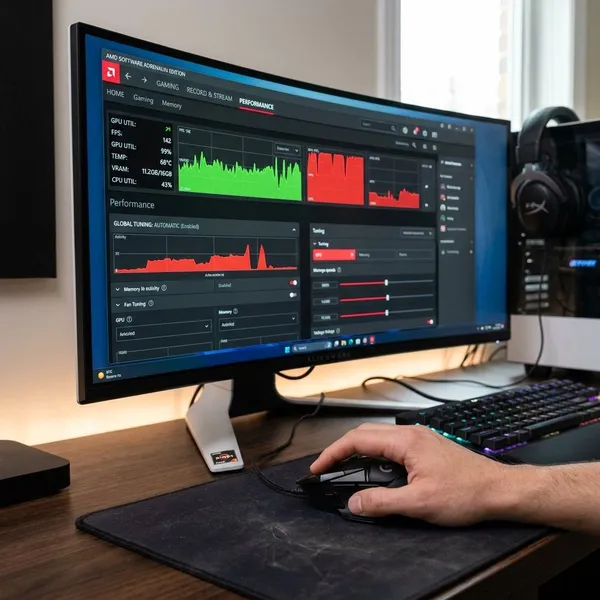
AMD Software: Adrenalin Edition is AMD's control app for supported Radeon graphics hardware. It can update your graphics driver, manage display and gaming settings, show performance data, tune supported GPUs, and record clips without installing several separate tools.
Update Radeon drivers
Driver updates are the most practical reason to use AMD Software. A newer Radeon driver can fix game crashes, visual glitches, poor performance, or compatibility problems after a Windows update.
You do not need to install every driver the moment it appears. If your PC is stable and you mostly browse, stream video, or do office work, waiting a little is reasonable. If a new game runs badly or a graphics issue appears, checking for an AMD driver update should be one of your first steps.
Adjust graphics and display settings
AMD Software gives you a central place for display and graphics controls that would otherwise be split between Windows, games, and monitor menus. Depending on your hardware, you may see options for scaling, color, refresh behavior, game profiles, and Radeon-specific graphics features.
- Use it for display problems: stretched image, wrong scaling, washed-out color, or missing refresh options.
- Use it for gaming profiles: sharper visuals in a story game, smoother performance in a competitive game.
- Check Windows too: some monitor settings still need to be changed in Windows display settings or the monitor's own menu.
Monitor FPS and hardware performance
The performance overlay can show useful clues such as FPS, GPU usage, temperature, and other system readings when supported. This is helpful because "the game feels slow" is too vague; the overlay can show whether the GPU is busy, the frame rate is unstable, or temperatures are climbing during play.
Tune supported graphics hardware
Some AMD graphics cards can be tuned inside AMD Software, including performance profiles, fan behavior, power limits, or similar options depending on the GPU. This is useful, but it is also the part where you should be more careful: small, reversible changes are safer than copying aggressive settings from someone with different hardware and cooling.
For a quiet living-room PC, tuning may mean reducing noise rather than chasing higher FPS. For a desktop used for long gaming sessions, the priority may be keeping temperatures stable under load. If you are unsure, start with preset or automatic options rather than manual voltage or clock changes.
Record and capture gameplay
AMD Software can capture screenshots and record gameplay on compatible systems, which is convenient if you only need occasional clips. It is also handy for saving evidence of a bug, a flickering issue, or a crash pattern before you change drivers or settings.
If you record often or stream seriously, dedicated recording software may still give you more control. For quick clips, though, the built-in tool keeps things simple and avoids adding another background app to your PC.
How to download AMD Software
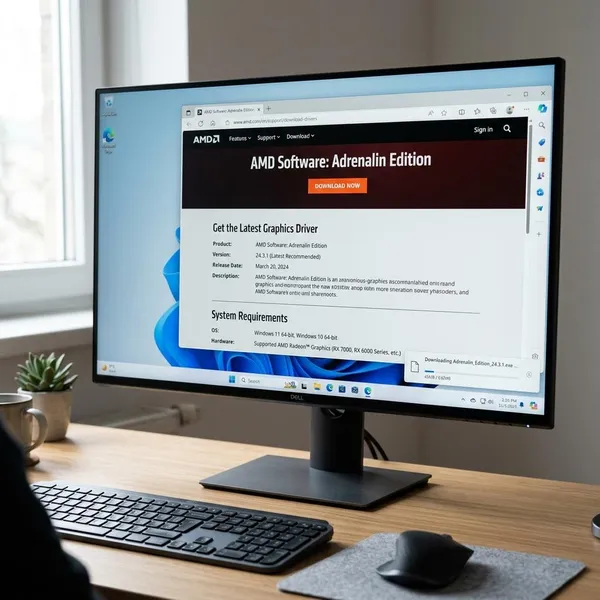
The safest download source is AMD's official Drivers and Support page. Before downloading, identify your AMD graphics hardware so you do not install a package meant for a different Radeon model or an unsupported older product.
Use Auto-Detect if you are unsure what is inside the PC. Choose manual selection if you already know the exact GPU model, need a specific legacy driver, or are downloading the installer for another computer.
Check your AMD graphics model
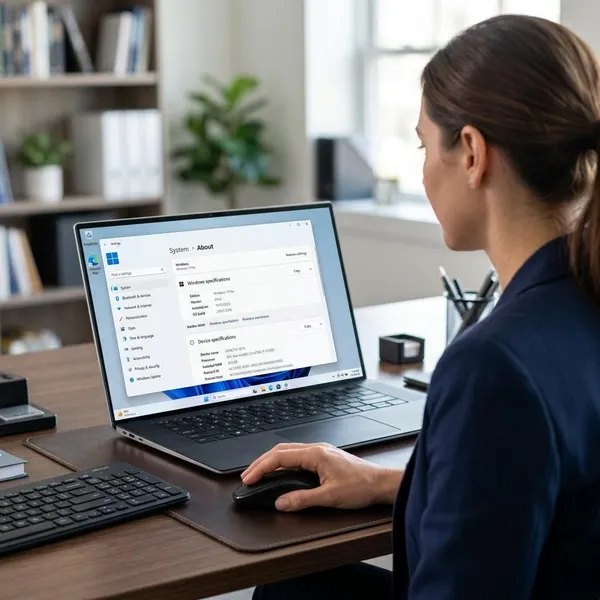
Start by checking the graphics model in Device Manager, Task Manager, AMD Software if it is already installed, or the specification page for your laptop or desktop. This matters most on laptops, because some systems use AMD integrated graphics, a dedicated Radeon GPU, or hybrid graphics with more than one adapter.
Go to AMD Drivers and Support
Download from AMD's own support site rather than a random driver mirror. Third-party sites can be outdated, bundle unwanted software, or offer a package that does not match your hardware.
Release notes are worth a quick scan when you are fixing a specific problem. Look for your game, your GPU family, or a known issue that matches what you are seeing. If the notes do not mention your problem, the update may still help, but it is better not to expect a guaranteed fix.
Use Auto-Detect for the easiest match
Auto-Detect is the easiest choice for most home users. It checks the system and recommends the AMD Software package that fits the detected graphics hardware, which reduces mistakes when product names look similar.
- Good for: laptops, prebuilt PCs, and users who do not know the exact GPU model.
- Less useful when: the tool fails to run, the PC has no internet access, or you need a specific older driver.
Select your hardware manually if needed
Manual selection is better when you already know the exact Radeon model or when Auto-Detect does not work properly. It is also useful for repair situations, such as downloading the installer on one computer and moving it to another with a USB drive.
Be careful with older graphics cards. Some may require a legacy driver rather than the newest Adrenalin package. If AMD's support page routes you to an older release, that usually means the hardware is no longer supported by the latest branch.
How to install AMD Software
Installation is usually straightforward: run the AMD installer, choose the install type, review the options, finish setup, and then open AMD Software to confirm the driver. The choices during setup matter because they decide whether you get the full Adrenalin interface or just the driver.
- Close games and GPU tools before starting the installer.
- Use administrator permission if Windows asks for it.
- Restart when requested even if the desktop looks normal.
- Test one real task afterward, such as a game, video, or external monitor.
Run the AMD installer
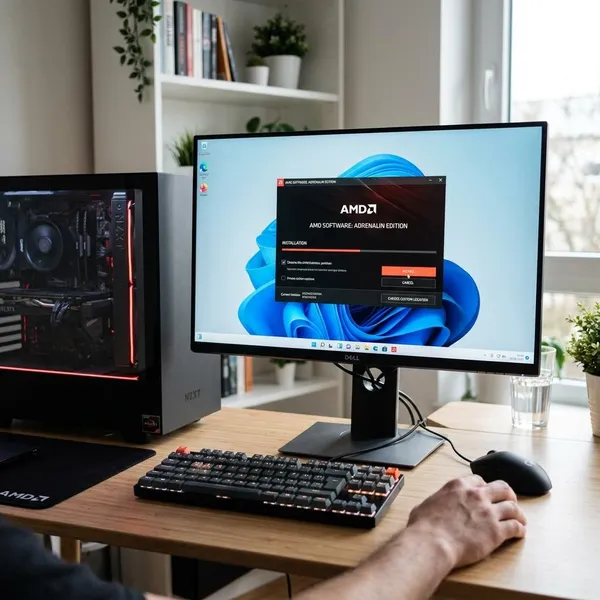
Open the installer you downloaded from AMD and allow it to unpack and detect your graphics hardware. Your screen may flicker later in the process, but at this first stage the main thing is to make sure the installer actually launches and recognizes the system.
If it refuses to open, restart the PC and download a fresh copy from AMD before trying more complicated fixes. A damaged installer file can create errors that look like driver problems.
Choose your install type
The install type controls how much of AMD Software is installed. Full Install gives you the complete Adrenalin interface, Minimal Install keeps the setup lighter, and Driver Only installs the graphics driver without the normal AMD Software dashboard.
For a gaming desktop or a PC connected to multiple monitors, Full Install is usually the practical choice. For a basic office PC where you only need the display driver to work correctly, Minimal or Driver Only may be enough.
Review the installation options
Do not skip the options screen too quickly. Depending on the package, you may see choices related to reset behavior, shortcuts, or additional settings.
A clean or factory reset option can help when you are fixing persistent driver trouble, especially after failed updates, crashes, or settings that no longer open correctly. If the system is already stable and you are doing a routine update, a normal install is often less disruptive.
Complete the installation
Let the installer finish without launching games or heavy apps in the background. A brief black screen or flicker can happen while Windows switches graphics drivers, so wait for the installer result before assuming something went wrong.
If the installer asks for a restart, take it seriously. Restarting helps the new driver load cleanly and often fixes small oddities such as missing tabs, strange resolution behavior, or the app not opening right away.
Open AMD Software and check the driver
After restarting, open AMD Software and check three things: the GPU is detected correctly, the driver version is shown, and the expected features are available for your install type.
- If features are missing: confirm you did not choose Driver Only or install a package for the wrong hardware.
- If the app opens but behaves strangely: try a restart first, then consider reinstalling with a reset option.
- If games still crash: test with one game and one changed setting at a time so you can see what actually helps.
Which AMD Software install type should you choose?
Most users should choose Full Install because it gives the easiest access to updates, display settings, monitoring, and capture tools. Minimal Install is better if you want fewer extras, while Driver Only makes sense mainly for troubleshooting or very lean setups.
| Install type | Best fit | Main trade-off |
|---|---|---|
| Full Install | Gaming, multiple displays, performance monitoring, easy updates | Includes the most features and background components |
| Minimal Install | General home or office use with basic Radeon controls | Fewer tools for recording, tuning, and overlays |
| Driver Only | Troubleshooting, simple driver setup, third-party tools | No normal AMD Software interface for easy controls |
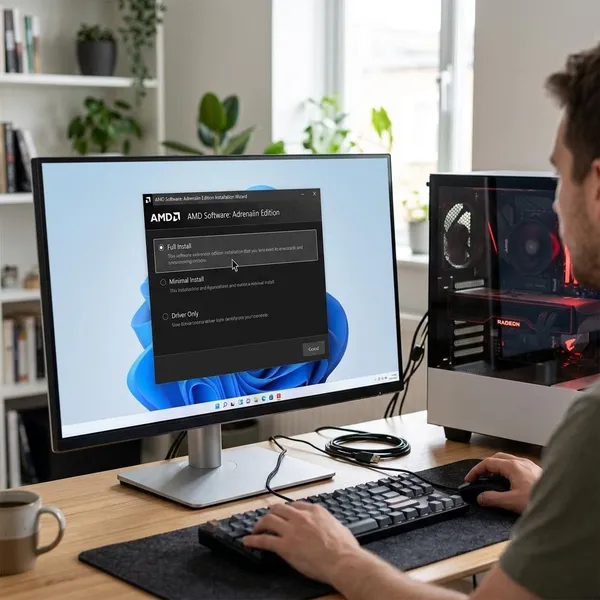
Choose Full Install for all features
Full Install is the best default if you game, tweak display settings, record clips, monitor FPS, or simply want the easiest way to manage Radeon updates. It gives you the full AMD Software experience instead of making you hunt for separate tools later.
Choose Minimal Install for basic controls
Minimal Install suits users who want AMD's driver and some basic controls without the full feature set. It is a sensible middle ground for a school laptop, home office desktop, or shared family PC where gaming overlays and tuning tools are not a priority.
Choose Driver Only without the AMD Software interface
Driver Only installs the core graphics driver without the standard AMD Software interface. Choose it if you deliberately want fewer components, prefer other monitoring tools, or are testing whether the full interface is part of a problem.
Conclusion
AMD Software is worth using when you want your Radeon driver, display controls, updates, and performance tools in one place, but the install type should match how you actually use the PC. Pick Full Install if you want the least hassle, Minimal Install if you only need basic control, and Driver Only if you have a specific reason to keep the setup stripped down.