Which Free PDF Editor Is Right for You?
The best free PDF editor is the one that matches your actual job, not the one with the longest feature list. For direct text edits and OCR, start with PDFgear; for quick browser edits, Sejda is handy; for Mac forms and signatures, Apple Preview is usually enough; and for flyer-style layout changes, Canva makes more sense than a traditional PDF tool.
Best free PDF editors by task
Before comparing every feature, decide what kind of PDF you normally touch. A one-page permission slip, a scanned receipt bundle, a resume, and a marketing flyer all need different tools.
| Common task | Best free fit | Use it when | Be careful if |
|---|---|---|---|
| Editing existing text | PDFgear | You need regular desktop editing and OCR | The PDF has complex fonts or tight layout |
| Quick online changes | Sejda | You only edit PDFs occasionally | The file is large, private, or used often |
| Forms and signatures | Apple Preview | You use a Mac and need simple paperwork tools | You need to rewrite original body text |
| Visual redesign | Canva | The PDF is a flyer, menu, or presentation-style file | The document must keep exact formatting |
How the free PDF editors compare
Feature names can be misleading. Two tools may both say "edit PDF," but one changes the original text while another only places a text box over the page. The safest way to compare them is by the task that would actually ruin your day if it failed.
Editing existing text versus adding annotations
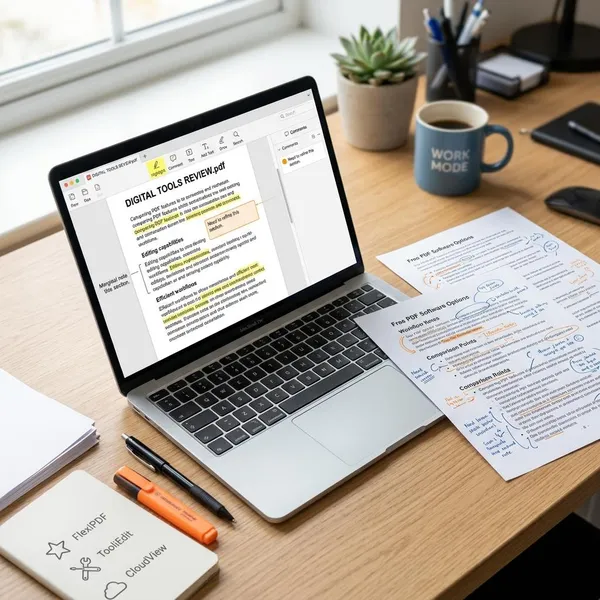
Direct text editing changes the words already inside the PDF. Annotation adds something on top, such as a note, highlight, arrow, or text box. For review comments, annotation is fine; for correcting a misspelled company name before printing, it may look sloppy.
PDFgear is the better free option here for normal text edits, while Sejda can handle lighter changes in simpler files. Preview is mainly for markup and signatures. Canva is better treated as layout rebuilding, not precision text correction.
OCR for scanned documents
OCR should be near the top of your list if your PDFs are scans. Without OCR, the page may look readable to you but behave like a flat image to the editor.
Form filling and signatures
Most form and signature tasks do not need a heavy editor. You need stable fields, a signature tool, and a final file that still lines up properly.
- Mac paperwork: use Preview first.
- Cross-device use: PDFgear is more flexible.
- One-off browser task: Sejda is convenient.
- Designed forms: avoid Canva unless you are intentionally redesigning the page.
Page management and conversion
Many PDF jobs are not about rewriting text at all. Merging receipts, deleting blank scan pages, rotating a sideways form, or splitting a long packet can matter more than paragraph editing.
PDFgear is useful because it combines page tools with editing features in one place. Sejda is fine for quick browser-based page changes. Preview can handle some basics on Mac, but it is not as broad for conversion work. Canva is the wrong tool if your main goal is file structure rather than visual design.
Device support and offline access
Choose by where you work. If you move between shared computers and only edit now and then, Sejda's browser access is convenient. If you edit larger files or want to work without uploads, PDFgear's desktop approach is more comfortable.
Offline access is also a privacy decision. For IDs, contracts, financial files, medical paperwork, or internal company documents, a local desktop editor is usually a safer habit than uploading the file to an online service just to make a small change.
What to check before choosing a free PDF editor
A free PDF editor can look perfect until the last step, when it blocks export, changes formatting, or adds a limit you did not expect. Check the boring details before editing the only copy of an important file.
File size, page, and usage limits
Free limits matter most when your PDFs are long, scanned, or image-heavy. A tool that feels fine for a two-page form may struggle with a 120-page handbook or a folder of scanned receipts.
For occasional small files, Sejda's limits may never bother you. For repeated work, larger documents, or long-term use, a desktop tool like PDFgear is usually less frustrating. Use a copy of your largest typical PDF as the test file, not the smallest one.
Watermarks and paid export features
The edit itself is only half the workflow. A free tool is not useful if it lets you make changes and then hides clean export, conversion, or watermark-free output behind a paid step.
Before relying on any editor, do one complete trial: open a copy, make a small edit, export it, reopen it, and print or preview the result. That five-minute check catches most unpleasant surprises.
Font and layout changes after editing
PDFs are built to preserve appearance, not to behave like Word documents. When you edit text, fonts may substitute, line breaks may move, and spacing can change.
- Low risk: informal notes, drafts, study materials, internal copies.
- Higher risk: resumes, contracts, certificates, official forms, branded documents.
- Best habit: save a copy, edit one line, then compare it with the original before continuing.
Local processing versus file uploads
Online editors are convenient, but they usually require uploading the file. That may be fine for a public flyer or a casual worksheet, but it is not the best instinct for personal records, client files, legal documents, or anything with private data.
If privacy, poor internet, or large file size is part of your situation, give more weight to a desktop editor. The goal is not just to finish the edit; it is to finish it without creating a new problem.
Conclusion
Pick the editor by the job you do most often, then test it on a copy of a real file before trusting it with something important. PDFgear is the safest all-around free choice, Sejda is best for light online edits, Preview is the easy Mac answer for forms and signatures, and Canva belongs with design-style PDFs rather than precision documents.