Which Apple Video Editor Is Right for You?
The right Apple video editor is usually the simplest one that can finish your project without slowing you down. Use Photos for one quick clip, iMovie when you need a real beginning-to-end video, and Final Cut Pro when editing becomes regular, detailed, or professional enough to justify the extra control.
Which Apple video editor fits your project?
Start with the project, not the app. A 20-second clip for a message does not need the same editor as a 12-minute YouTube video with separate audio, titles, and color fixes.
Photos for trimming and adjusting single clips
Photos is the best choice when the whole job is one clip: cut off the shaky start, straighten the frame, adjust brightness, or make a quick crop before sharing. It is built into Apple devices, so there is no project setup and no separate import step.
For example, if you recorded a short birthday moment on iPhone and only need to remove the first few seconds, Photos is faster than opening a full editor. It is not the right tool if you want to stitch together several clips, add music across a timeline, or build a video with a clear sequence.
iMovie for combining clips with titles and music
iMovie is the practical middle option for most casual creators. It gives you a timeline, clip trimming, transitions, titles, and music without making you learn a professional editing workflow first.
- Good fit: family videos, school projects, travel recaps, beginner YouTube videos, simple social clips.
- Not ideal: heavy audio cleanup, detailed color matching, complex graphics, large recurring productions.
If you want a video to feel intentionally edited rather than just corrected, iMovie is usually the first Apple app worth trying.
Final Cut Pro for advanced editing and production
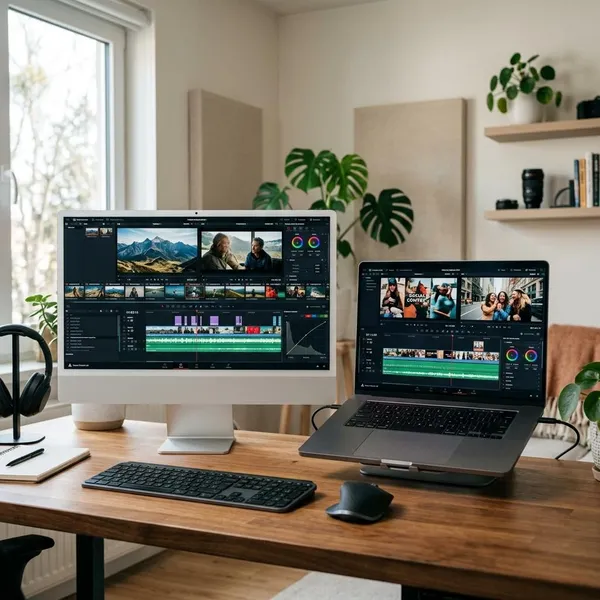
Final Cut Pro makes sense when editing is no longer occasional. It is built for larger projects, repeated revisions, layered timelines, stronger media organization, and more precise finishing than iMovie offers.
Which Apple video editors work on your device?
Your device can narrow the decision before features do. Photos is the easiest universal starting point, iMovie covers many everyday projects, and Final Cut Pro is available only on supported iPad and Mac setups.
Also think about comfort. A phone is perfect for quick edits on the go, but a longer timeline is easier to manage on an iPad or Mac. If you often make videos with many clips, screen size and input method can matter as much as the app itself.
Photos and iMovie on iPhone
On iPhone, Photos handles fast edits immediately after recording, while iMovie lets you build a short project from multiple clips. That combination is enough for many people who shoot, edit, and share from the same device.
The limit is precision. Moving around a longer timeline, adjusting small cuts, or balancing music and dialogue can feel cramped on a phone. For a quick TikTok-style clip or family update, that is fine; for a 10-minute project with many scenes, you may be happier finishing on iPad or Mac.
Photos, iMovie, and Final Cut Pro on iPad
iPad gives you the widest portable Apple editing range: Photos for quick fixes, iMovie for simple projects, and Final Cut Pro for more serious mobile editing. The larger screen makes trimming, reviewing, and arranging clips much easier than on iPhone.
| iPad editing need | Best Apple option |
|---|---|
| Fix one clip after recording | Photos |
| Make a short video with music and titles | iMovie |
| Edit regularly while traveling or away from a desk | Final Cut Pro on iPad |
If you rely on keyboard shortcuts, large external storage, or long desktop sessions, a Mac may still feel better. But for portable editing with more room than a phone, iPad is often the most flexible choice.
Photos, iMovie, and Final Cut Pro on Mac
Mac is usually the most comfortable platform for longer editing sessions. Photos remains useful for quick corrections, iMovie feels easier with a larger timeline, and Final Cut Pro on Mac is the strongest Apple option for demanding work.
Choose Mac when you expect to manage lots of footage, compare takes, use external drives, or sit with a project for more than a quick mobile edit. It is less convenient than iPhone for instant sharing, but much better when accuracy and organization matter.
How do Photos, iMovie, and Final Cut Pro compare?
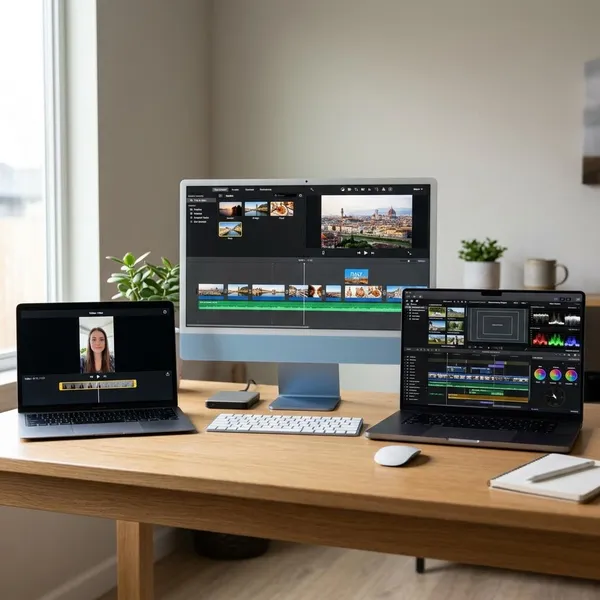
The real comparison is about friction versus control. Photos has almost no learning curve but very limited editing depth. iMovie adds enough structure for most personal videos. Final Cut Pro gives you the most control, but it asks for more time, attention, and budget.
Ease of learning
Photos is the easiest because it behaves like a quick correction tool: open the clip, tap Edit, make the change, save. iMovie is still beginner-friendly, but it introduces a timeline, clip order, titles, and music. Final Cut Pro has the steepest learning curve because it expects you to manage projects, media, audio, color, and timeline detail more deliberately.
If you are new to editing, a sensible path is Photos first, then iMovie when one-clip edits feel too limiting. Move to Final Cut Pro only when you can name the specific limits you keep running into.
Timeline and clip control
Photos barely has timeline control because it is meant for single clips. iMovie gives you enough timeline control to arrange scenes, tighten pacing, add transitions, and make a simple story. Final Cut Pro is the better choice when you need layered edits, many clips, repeated changes, or more detailed control over how everything fits together.
Titles, effects, and audio tools
Photos is not built for presentation work, so do not choose it if titles, music, or sound balance matter. iMovie covers the basics well: simple title cards, transitions, background music, and light audio adjustments.
Final Cut Pro becomes useful when audio and polish affect how professional the video feels. For example, an interview with uneven sound or multiple clips from different locations is much easier to clean up and organize in a stronger editor than in iMovie.
Color correction
Photos can make a clip look a little brighter, cleaner, or better balanced. iMovie gives light correction options that are fine for casual projects, but it is not meant for careful color matching across many shots.
Final Cut Pro is the stronger choice when visual consistency matters. If one clip was shot indoors, another outdoors, and another in low light, you will have more room to bring them closer together. Exact results still depend on the footage and device, but the toolset is much deeper.
Free access and paid options
Photos and iMovie are free on supported Apple devices, which makes them the best starting point for most people. You can find out what you actually need before paying for more software.
Final Cut Pro is paid, so it should solve a real problem: saving time, handling larger projects, improving audio and color, or supporting work you do regularly. If you only edit the occasional personal clip, the money is probably better saved. If video is part of your work or consistent creative output, the upgrade can be easier to justify.
Conclusion
Pick the editor that removes the biggest obstacle in your current workflow. Photos is enough when speed matters and the edit is tiny, iMovie is the safest choice for most finished personal videos, and Final Cut Pro is worth considering once your projects become frequent, layered, or hard to manage in simpler tools.