How Does Audacity Help You Record and Edit Audio?
Audacity software is a good fit if you want to record, clean up, and export audio on a desktop computer without paying for a subscription. It is strongest for voiceovers, podcasts, interviews, simple music ideas, and file conversion, but it is not meant to replace a full studio production setup for complex music sessions.
What is Audacity software?
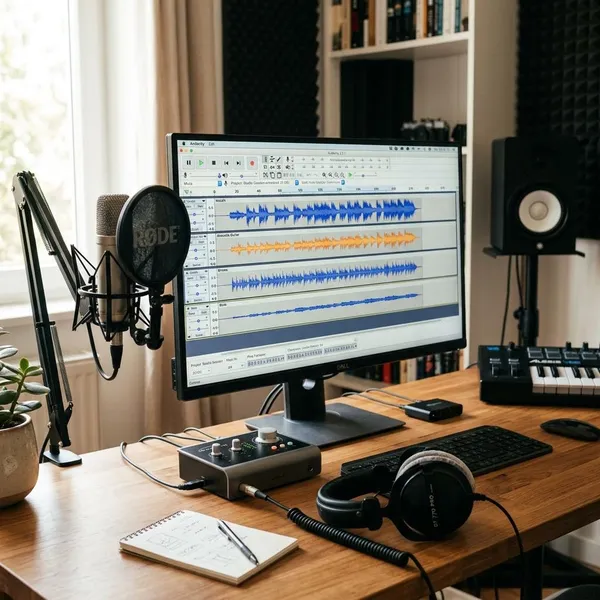
Audacity is a free, open-source audio editor and recorder for Windows, macOS, and Linux. You can use it to capture sound from a microphone, edit existing audio files, clean up common recording problems, and export finished audio in formats such as MP3 or WAV.
Its biggest advantage is that it covers the basic audio workflow in one place. A student can record a presentation, a podcast beginner can cut out mistakes, and someone digitizing an old recording can trim and export a cleaner copy without buying a larger audio program.
What can you do with Audacity?
Audacity can handle the main jobs most beginners want from an audio editor: recording, trimming, mixing, noise cleanup, effects, and exporting. The most useful way to think about it is this: if the project is mostly audio editing rather than full music production, Audacity is often enough.
Record voices and instruments
You can record voice through a laptop mic, USB microphone, or audio interface, although the microphone choice affects the result more than the software itself. For a quick voice note, the built-in mic may be acceptable; for a podcast, narration, or online lesson, a basic USB microphone and a quiet room usually make a bigger difference.
Edit podcasts and interviews
Audacity is especially useful for spoken audio because the waveform makes mistakes, pauses, and loud sections easy to spot. You can remove false starts, shorten long silences, cut repeated lines, and make an interview easier to follow.
- Good use: tightening a 30-minute conversation before publishing.
- Less ideal: trying to rebuild badly recorded audio with heavy background noise and overlapping speakers.
Mix multiple audio tracks
Multiple tracks let you combine narration, intro music, sound effects, and extra clips in one project. This is useful for podcasts, school projects, training audio, and simple storytelling pieces.
The main thing to watch is balance. Background music should sit under the voice, not compete with it. If a listener has to turn the volume up for speech and down for music, the mix needs more work.
Reduce noise and apply effects
Audacity can reduce steady background noise such as fan hum, light room hiss, or air-conditioning sound. It works best when the noise is consistent and you can sample a short section where only the noise is present.
Effects such as EQ, compression, reverb, pitch change, and tempo change can help, but they are easy to overuse. For voice recordings, small corrections usually sound more natural than aggressive processing. If speech starts to sound metallic or thin, back off and accept a little remaining noise.
Convert audio between formats
Audacity can import and export common audio formats, which makes it handy as a basic converter. MP3 is usually the practical choice for sharing, uploading, or emailing. WAV is better when you want an uncompressed file for archiving, future editing, or use in a video project.
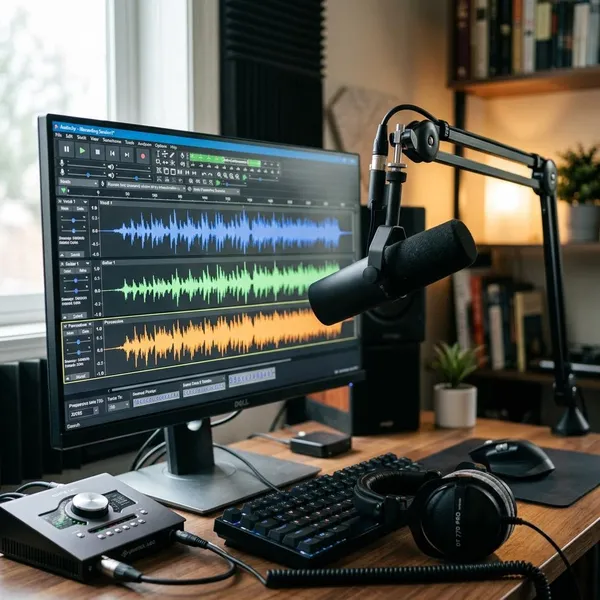
How to record audio in Audacity
A clean recording starts before you press Record. The most important checks are simple: use the official download, select the right microphone, wear headphones if needed, and make a short test so you can catch clipping or room noise early.
Download Audacity from the official site
Get Audacity from the official Audacity website rather than a random download page. That lowers the risk of installing an outdated copy, a bundled installer, or the wrong version for your operating system.
After installation, keep the first setup simple. Connect one microphone, open a new project, and avoid changing advanced settings until you know the basic recording path works.
Select your microphone and headphones
Choose the recording input before you start. Many computers show several options, such as a built-in laptop mic, webcam mic, headset mic, or USB microphone. If the wrong one is selected, the recording may sound distant even though Audacity itself is working correctly.
Test input levels to avoid clipping
Clipping is the problem to avoid first. Speak or play at the loudest level you expect to use and watch the meter; if it hits the top or turns red, lower the input level before recording the real take.
Record and check playback
Make a short test recording before the full version, even if the project feels simple. Listen for the problems that are easiest to fix now: the wrong microphone, too much room echo, fan noise, mouth noise, or sudden volume jumps.
- Record 10 to 20 seconds at your normal speaking or playing level.
- Listen back on headphones, not just laptop speakers.
- Move the mic closer if the sound is thin or distant.
- Lower the input if peaks are clipping or harsh.
- Record again once the test sounds acceptable.
How to edit audio in Audacity
Editing in Audacity is easiest when you work in order: import or record the audio, remove the biggest mistakes, reduce only the noise that is actually distracting, adjust levels, and then listen through the whole file. That order keeps you from polishing a section you may later cut.
Import your recording
You can bring an existing audio file into Audacity if it was recorded on a phone, portable recorder, camera, or another app. Once imported, it appears as a waveform that you can select, cut, move, and process.
Cut mistakes and unwanted pauses
Start with obvious edits: false starts, repeated phrases, long dead air, and sections that do not belong in the final version. Select the unwanted part, delete it, and immediately play across the join to make sure the cut sounds natural.
Do not remove every breath or small pause. Natural speech needs space. A podcast with every gap removed can sound more uncomfortable than one with a few normal pauses left in.
Reduce steady background noise
Noise reduction works best on steady sounds, not random interruptions. A constant fan is a better candidate than a barking dog, chair squeak, or keyboard click.
- Use it when: the noise continues under most of the recording.
- Be cautious when: the voice starts sounding watery, metallic, or muffled.
- Try first: a gentle reduction, then compare before and after.
Adjust volume and balance tracks
Volume work is about comfort, not just loudness. Raise quiet speech enough to be heard, lower music under narration, and avoid sudden jumps that make the listener reach for the volume control.
For a two-person interview, focus first on making both speakers feel reasonably even. For a narration with background music, set the voice clearly in front and treat the music as support. Compression, normalization, and amplification can help, but use them to improve listening rather than to make the waveform look perfect.
Listen through the finished edit
A full playback pass catches mistakes that are easy to miss while zoomed in on small edits. Pay attention to the first few seconds, the transitions between cuts, and the final ending, because those areas often reveal rough starts, clipped words, or awkward silences.
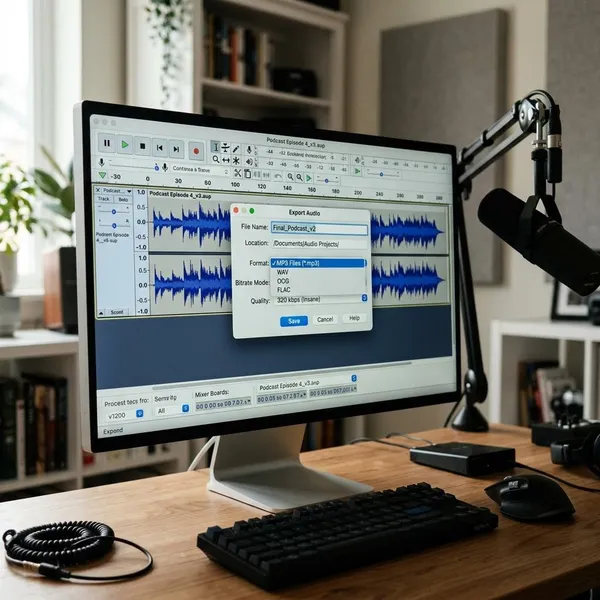
How to save and export in Audacity
Saving and exporting are not the same thing in Audacity. Saving keeps the editable project so you can come back later. Exporting creates the audio file that other people can play, upload, or receive.
Save the project for future edits
Save the Audacity project if there is any chance you will need to change the edit later. The project keeps your tracks, cuts, timing, and working layout, which is much easier than trying to rebuild an edit from a finished MP3.
Choose MP3 for sharing or WAV for uncompressed audio
MP3 is usually the practical format when the file needs to be shared, uploaded, or stored in a smaller size. WAV is the better choice when quality matters more than file size, such as archiving a master copy or passing audio into another editing program.
| Use case | Better choice | Why it helps |
|---|---|---|
| Emailing or uploading spoken audio | MP3 | Smaller and easier to share |
| Keeping a master copy | WAV | Uncompressed and better for later edits |
| Adding audio to a video project | Often WAV | Preserves quality during further editing |
Export and check the audio file
After exporting, open the finished file outside Audacity. This simple check confirms that you exported the right file type and that the audio plays correctly in a normal media player.
- Check the beginning and ending for cut-off words or silence.
- Listen for volume jumps that were missed during editing.
- Confirm the filename is clear enough to identify later.
- Keep the Audacity project if future changes are likely.
Conclusion
Audacity is worth using when you need a free desktop tool for practical audio work: record a clean take, remove the obvious problems, balance the sound, and export the right file. Start with a small project before relying on it for something important, because the real learning comes from hearing how your microphone, room, edits, and export choices affect the final result.