Which Free Drawing Software Is Right for You?
The best free drawing software depends less on the longest feature list and more on what you actually want to make: paintings, comics, vector graphics, or quick sketches. If you want one strong desktop pick, start with Krita; if you are new, try FireAlpaca; if you draw on a phone, ibis Paint X is usually the more practical first test.
Best free drawing software by art style
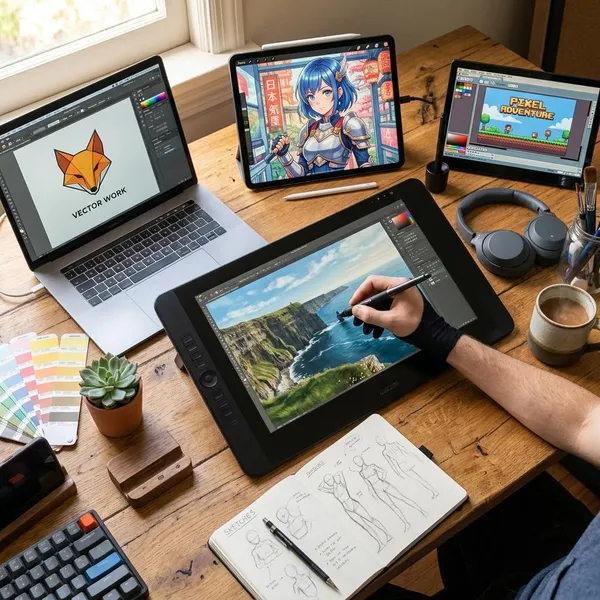
Choosing by art style saves a lot of time. A painter needs different tools from someone making logos, and a comic artist will notice missing page features much sooner than missing paint textures.
Krita for digital painting
Krita is the strongest free choice for digital painting on Windows, macOS, and Linux. It suits portraits, concept art, detailed illustrations, textured brushes, and layered artwork where you want room to grow.
Its main advantage is depth: brush control, stabilizers, masks, blending modes, selections, and pen pressure support are all serious enough for long projects. The tradeoff is the interface. A beginner can still use Krita, but it may feel busy during the first few sessions.
Pick Krita if you plan to draw regularly on a desktop or laptop and want one free program that will not feel too small after a month of practice.
FireAlpaca for beginner drawing
FireAlpaca is easier to approach than Krita. The workspace is lighter, the basic tools are easy to find, and it runs well for simple sketching, inking, coloring, and practice pieces.
- Good fit: beginners, casual artists, older computers, clean line art.
- Less ideal: heavy painting, complex brush setups, large professional files.
- Best first test: sketch and color one small character or object.
MediBang Paint for comics and manga
MediBang Paint makes the most sense when your work is built around comic pages, panels, speech bubbles, screentones, and manga-style inking. A general painting app can do some of this, but MediBang puts more of those tools close to the surface.
It is especially useful for someone making short comics or web manga and moving between devices. Just check the exact free features on your platform before starting a long project, because ads, account features, and cloud options can vary.
Inkscape for vector illustration
Inkscape is not a painting program; it is a vector illustration tool. That makes it the right free option for logos, icons, stickers, clean diagrams, infographics, and artwork that needs to resize without becoming blurry.
The learning curve is different. Instead of blending paint, you shape paths, nodes, curves, and objects. If you mostly draw shaded characters, Krita will feel more natural. If you need a crisp logo for a website, sticker sheet, or print layout, Inkscape is the better match.
ibis Paint X for mobile drawing
ibis Paint X is one of the most practical free options for artists who draw mainly on a phone or tablet. It gives you layers, brushes, rulers, screentones, and touch-friendly controls without needing a desktop setup.
This is a good choice for anime sketches, social media art, mobile practice, and drawing during short breaks. For daily long sessions, a small phone screen can become tiring, but a tablet with a stylus makes ibis Paint X much more comfortable.
Kleki for quick browser sketches
Kleki is best when convenience matters more than power. Open it in a browser, sketch an idea, save it, and move on.
Use it for rough thumbnails, classroom work, visual notes, color tests, or a quick idea on a shared computer where you cannot install software. Do not choose it for complex layered illustrations or professional comic pages.
How the free drawing tools compare
After art style, your next filter should be practical: device, stylus support, layers, export needs, and whether the free version stays comfortable after an hour of use. A tool can be excellent and still be wrong for your setup.
| Tool | Best use | Watch out for |
|---|---|---|
| Krita | Desktop painting and illustration | More panels and settings to learn |
| FireAlpaca | Beginner sketching and line art | Less depth for advanced painting |
| MediBang Paint | Comics and manga pages | Free features may vary by platform |
| Inkscape | Vector logos, icons, and print graphics | Not a natural painting workflow |
| ibis Paint X | Mobile drawing and manga-style art | Ads or limits in the free version |
| Kleki | Fast browser sketches | Too limited for larger projects |
Supported devices
Device support should be the first hard check. If the software does not run smoothly on the device you actually use, its feature list does not matter much.
Krita and Inkscape are strong desktop options across major operating systems. FireAlpaca and MediBang Paint are also useful on desktop, especially when you want something lighter or comic-focused. ibis Paint X is the better pick for phone and tablet drawing, while Kleki works well when you only have a browser.
Brushes and pen pressure
For painting and line art, brush feel matters more than the number of brushes advertised. Look for smooth strokes, working pressure sensitivity, useful stabilization, and easy brush size control.
Krita leads for brush depth on desktop. FireAlpaca is simpler but predictable, which can help beginners. MediBang Paint and ibis Paint X are strong for manga-style lines. Inkscape is the exception here: it can use drawing input, but its real strength is editable vector shapes rather than expressive brushwork.
Layers and selection tools
Layers become important as soon as you want to fix mistakes without repainting everything. At minimum, you should be able to separate sketch, ink, color, shadows, and text.
- For detailed illustrations: Krita gives the most room with masks, groups, and blending modes.
- For comics: MediBang Paint keeps page and layer work fairly accessible.
- For mobile art: ibis Paint X is capable enough for polished layered pieces.
- For simple practice: FireAlpaca covers the basics without much clutter.
Ease of learning
The easiest software is not always the weakest software; it is the one that lets you finish a drawing before you get lost in menus. FireAlpaca and Kleki are the easiest starting points. Krita asks for more patience, but it rewards that time if you want to keep improving.
Inkscape can feel strange if you come from sketching because vector work is built around constructing shapes. That does not make it harder forever, just different. Give it a logo or icon project rather than judging it by how well it behaves like a paint app.
Export formats
Export formats matter when your drawing needs to leave the app. For casual sharing, PNG or JPG is usually enough. For ongoing work, keep the project file too, so layers remain editable.
Use Inkscape when SVG is important, especially for logos and scalable graphics. Use Krita when you need layered painting files and common image exports. If a printer, client, teacher, or platform asks for a specific format, test that export before you spend days on the artwork.
Ads and paid features
Free does not always mean the same experience. Open-source tools such as Krita and Inkscape usually feel more straightforward because the core software is not built around ads or locked upgrades.
Freemium tools can still be worth using. ibis Paint X and MediBang Paint offer a lot without payment, especially for mobile art and comics. The important check is whether ads, cloud limits, brush restrictions, or export limits interrupt the way you draw.
How to choose your drawing software
The fastest way to choose is to narrow the decision in order: art style first, device second, free-feature limits third. Only after those checks should you worry about extra tools you might use someday.
Match the tools to your art style
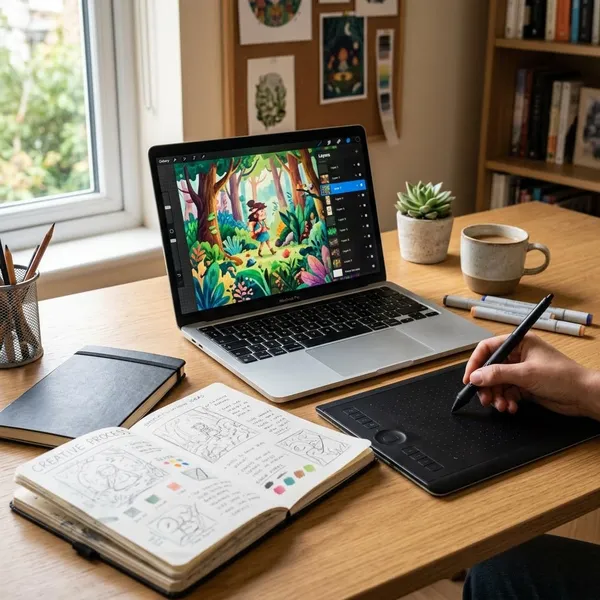
Start with the type of finished work you want to make most often. Painterly characters, portraits, and environments point toward Krita. Simple beginner sketches point toward FireAlpaca. Comic pages point toward MediBang Paint. Vector logos and icons point toward Inkscape. Phone-first drawing points toward ibis Paint X.
Check support for your device and stylus
Install the software on your real device and test your pen, not just the menus. Draw slow lines, fast curves, light strokes, heavy strokes, and diagonal lines. If pressure sensitivity, lag, palm rejection, or zooming feels wrong, the app may not be worth forcing.
Confirm which features are free
Before committing to a larger project, check the features you would actually use: saving, exporting, layers, brushes, comic tools, cloud sync, and animation if needed.
- Daily drawing: avoid apps where ads break your focus too often.
- Client or school work: confirm export formats before starting.
- Comics: check page tools, text tools, and screentones.
- Mobile art: test whether the free version limits brushes or workflow shortcuts you rely on.
Test one small drawing before committing
A small finished drawing tells you more than a long comparison. Pick one simple subject, sketch it, ink it, color it, add a few layers, export it, close the app, and reopen the file later.
- Notice the friction: lag, confusing menus, awkward zooming, or messy layer controls.
- Check the result: export the file and view it outside the app.
- Judge your mood: if the app made you avoid drawing, choose something simpler.
Conclusion
For most desktop artists, Krita is the safest all-around free choice, but it is not automatically the right one for every person. FireAlpaca is easier for beginners, MediBang Paint makes more sense for comics, Inkscape is the better tool for vector graphics, ibis Paint X wins for mobile drawing, and Kleki is useful when you just need a fast browser sketch. Pick the tool that matches your next real drawing, then test it with one small project before settling in.