How Can You Crop a Profile Picture for a Perfect Avatar?
If your profile picture keeps getting cropped strangely after upload, use an avatar cropper before you send it to the platform. The main job is simple: keep the face, logo, or icon centered, leave enough safe space for circular displays, and export a file that is large enough to stay sharp without being oversized.
What is an avatar cropper?
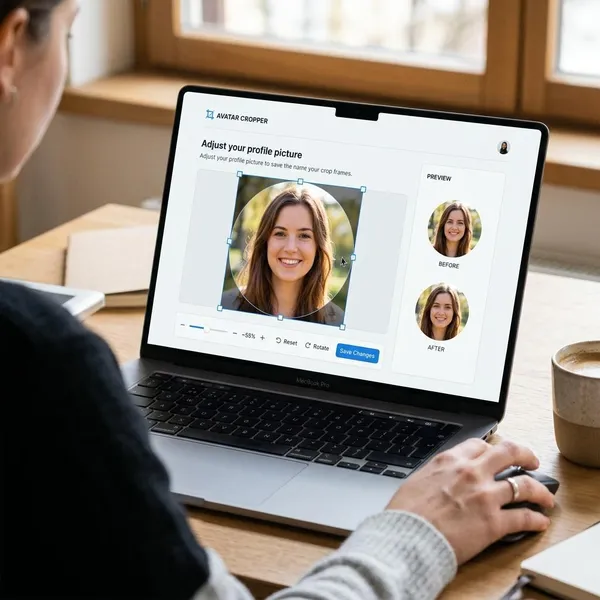
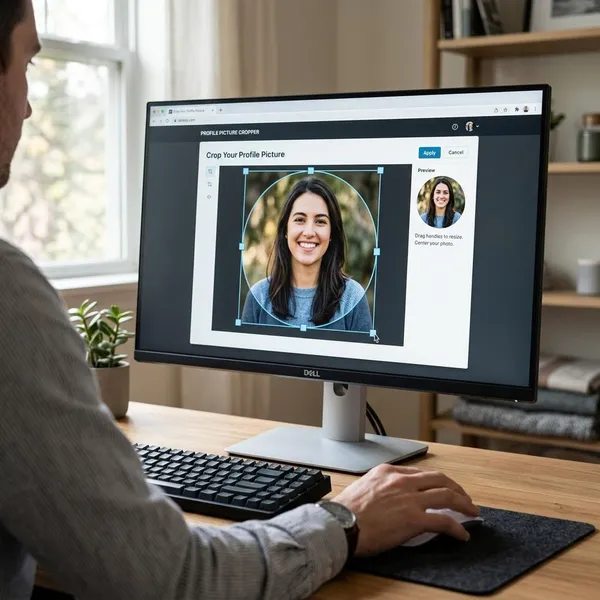
An avatar cropper is a small editing tool made for profile pictures. Instead of editing the whole photo, you choose the part that should appear inside a square or circle, then save that framed version for social media, work apps, forums, gaming profiles, or brand accounts.
The useful part is control. A platform may accept a square upload but display it as a circle in comments, menus, and chat lists. If you crop first, you can see whether the important detail will survive that change before the image is live.
How to crop your avatar
The best workflow is to start with image quality, then decide the shape, then fine-tune the framing. If you do it in the opposite order, you may spend time adjusting a crop that was never sharp enough or never suited to the platform.
Upload a clear, high-resolution image
Start with the sharpest version you have. Cropping removes pixels, and most platforms resize or compress profile pictures again after upload, so a blurry or tiny source image rarely improves later.
For a casual chat profile, a phone photo with good light may be enough. For a work profile, creator account, or company logo, be more selective: avoid heavy filters, screenshots, dark images, and logos with tiny words that will disappear when reduced.
Choose a square or circular crop
Use a square crop when the platform requests a square file or when the image needs to work across several services. Use the circular preview to check what will actually remain visible if the platform masks the corners.
| Image type | Safer crop choice | Watch out for |
|---|---|---|
| Headshot | Square export with circular preview | Forehead, chin, or hair cut off by the circle |
| Logo mark | Square or transparent PNG | Letters or outlines too close to the edge |
| Illustration | Depends on the composition | Important corner details disappearing |
Position your face or logo
Put the most recognizable part near the center first. For a face, that usually means the eyes and facial shape should feel balanced inside the frame. For a logo, the symbol should have even breathing room on all sides.
Adjust zoom and rotation
Zoom only as much as needed to make the subject readable. Extreme zoom makes softness more obvious and leaves no safety margin for circular masks, borders, or platform resizing.
Use rotation for small corrections, not for style unless the platform or brand tone supports it. A slightly tilted headshot can look accidental in a work tool, while a playful gaming avatar may tolerate more angle.
Preview at a small size and download
Before downloading, shrink the preview or view it at the smallest size the platform is likely to show. If the face, initials, or logo mark is not clear there, the crop is not ready.
- Check the small preview first.
- Pull back the zoom if the crop feels tight.
- Download only after the square and circle both look acceptable.
How to avoid cutoffs in circular avatars
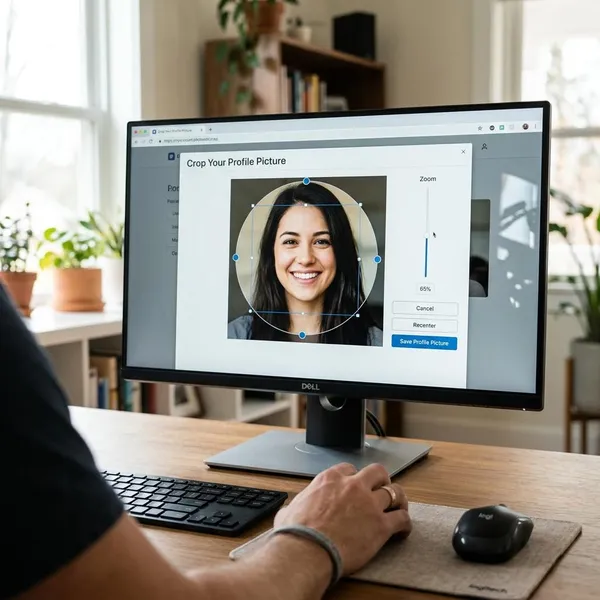
Circular avatars are where many good-looking square crops fail. The corners disappear, and some platforms add rings, badges, or extra scaling that can make a tight crop look even tighter.
Keep key details inside the circle
Treat the circle as the real visible area, not the square upload box. Keep eyes, face shape, initials, logo marks, and important outlines well inside that circle so the final avatar still reads instantly.
Leave space around your face or logo
Leave a visible margin around the subject, especially if the avatar will be used on more than one platform. A little background space helps the image survive different masks, borders, and device sizes.
This matters more for a logo than many people expect. A full business name may look fine in a large square preview, but a simple icon or initials often works better once it becomes a small circular avatar.
Check the preview on your target platform
The cropper preview is useful, but the final platform is the real test. Upload the image and check it in the smallest places: comments, account menus, sidebars, chat lists, or notification areas.
If the platform shows the avatar in several layouts, do not judge it only from the profile page. That large view can hide problems that become obvious in a tiny header or message thread.
Which export settings should you use?
Use settings that match the platform instead of exporting the biggest file possible. A clean, moderately sized image usually uploads more smoothly than a huge file that gets heavily compressed.
Dimensions that meet the platform's requirements
Check the platform's recommended profile picture size first. If no clear size is given, a square export such as 400 x 400, 512 x 512, or 800 x 800 pixels is usually a practical range for normal profile use.
Very small exports can blur after upload, while extremely large files may be processed more aggressively. For most avatars, the goal is not maximum resolution; it is a sharp file that still looks good after the platform resizes it.
PNG for transparency or JPG for photos
Choose PNG for logos, icons, flat graphics, and transparent backgrounds. Choose JPG for normal photos when you do not need transparency and want a smaller file.
- PNG: better for sharp edges, text-free logos, and transparent areas.
- JPG: better for portraits, casual photos, and smaller uploads.
File size within the upload limit
Keep the file comfortably under the platform's upload limit. If your avatar looks blurry after upload, do not automatically make the file larger; try exporting from a sharper source image at a sensible square size with less aggressive compression.
For an account you rarely use, a basic export may be fine. For a business profile, portfolio, or account where people need to recognize you quickly, take the extra minute to test the uploaded result and adjust before settling on the final version.
Conclusion
A good avatar is not just a smaller version of a photo or logo; it is a crop that still works when the image becomes tiny, round, compressed, or shown in a busy interface. Start with a sharp source, protect the important details inside the safe area, and export in a format the platform can handle cleanly.