What Can Adobe Reader Do on Android?
If you only need to open, read, mark up, fill, sign, and send PDFs from an Android phone, Adobe Acrobat Reader is usually enough without paying. The free app covers most everyday paperwork; a paid plan mainly matters when you need to change PDF text, convert files, or use heavier document tools.
What is Adobe Reader software for Android?
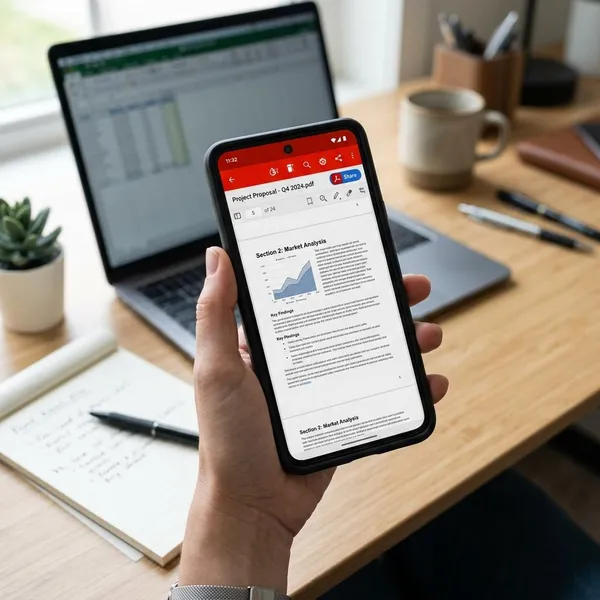
Adobe Reader software for Android is now known as Adobe Acrobat Reader. It is Adobe's mobile PDF app for opening, reading, reviewing, filling, signing, and sharing PDF files on Android phones and tablets.
Adobe Acrobat Reader is Adobe's mobile PDF app
Adobe Acrobat Reader is the official Adobe app for PDFs on Android. That matters because PDF layout can be sensitive: forms, invoices, tickets, and contracts need to open without the formatting shifting around.
It opens and manages PDFs on Android devices
The app can open PDFs from common Android locations such as Downloads, email attachments, local storage, recent files, and connected cloud services. Recent-file access is useful when you keep returning to the same bill, form, or study document instead of hunting through folders each time.
- Check first: where the PDF is stored: device, email, or cloud.
- Use local files: best for quick offline reading.
- Use cloud files: better if you switch between phone, tablet, and computer.
It offers fewer advanced tools than desktop Acrobat
The Android version is lighter than desktop Acrobat. It is strong for reading, comments, signatures, form filling, and sharing, but it is not the best place for major editing or complex document preparation.
What can Adobe Acrobat Reader do on Android?
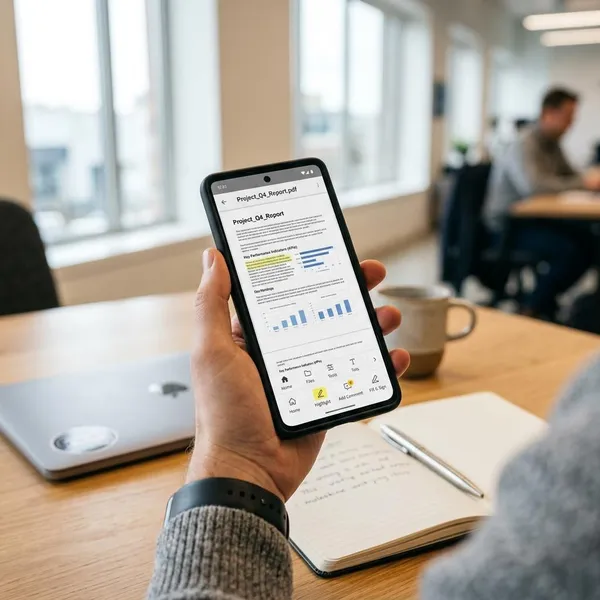
Adobe Acrobat Reader on Android covers the PDF tasks people usually need when they are away from a laptop. The most useful features are reading, search, annotation, form filling, signing, sharing, and cloud access.
Read and search PDF files
You can open PDFs, zoom in, scroll through pages, and search for words or phrases. Search is especially useful on a phone because long PDFs are awkward to skim manually.
Highlight text and add comments
Highlights and comments turn the app from a simple viewer into a review tool. You can mark a deadline, flag a price, or leave a note beside a clause that needs another person's answer.
- Highlight: use it for facts you need to find again.
- Comment: use it for questions, decisions, or follow-up notes.
- Avoid overmarking: if everything is highlighted, nothing stands out later.
Fill out and sign forms
Fillable PDFs usually let you tap a field and type directly into it. You can also create a signature with your finger or stylus and place it where needed.
Share PDFs and collect feedback
Sharing works through Android's normal share options, such as email, messaging apps, and cloud apps, plus Adobe account-based options when available. It is useful when you need someone else to review a document without changing its layout.
Access files from connected cloud services
Cloud access is helpful if your PDFs are not all stored on your phone. Depending on your setup, you may be able to connect services such as Google Drive, Dropbox, or Adobe cloud storage.
Which Adobe Reader features are free on Android?
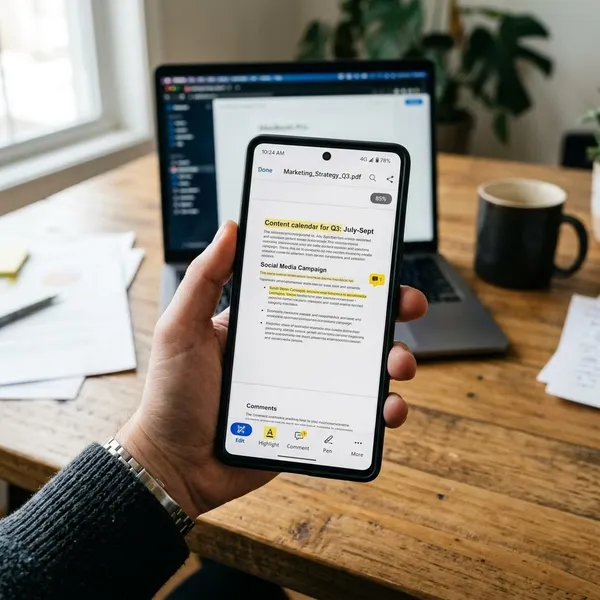
The free version is enough for many Android users because it includes the main reader and review tools. Paying becomes more relevant when you want to edit the actual PDF content, convert files, or use premium Adobe services.
| What you need to do | Free version is usually enough? | When to consider paid |
|---|---|---|
| Read, search, highlight, comment | Yes | Rarely needed for basic review |
| Fill and sign common forms | Yes | If your workflow needs extra Adobe services |
| Edit PDF text or images | No, not for advanced editing | When you often change finished PDFs |
| Convert or manage documents heavily | Limited | When PDFs are part of daily work |
PDF viewing is free
Viewing PDFs is free. You can open files, read pages, zoom in, and use search without needing a subscription.
Comments and highlights are free
Comments and highlights are included for free, which is useful for study notes, contract review, and simple teamwork. They are best used for review, not for changing the original document content.
Form filling and signing are free
Form filling and signing are free for common use. If the PDF has fillable fields, you can type into them; if it needs a signature, you can place one directly in the file.
File sharing is free
Standard file sharing is free through Android's normal sharing options. This is enough for sending back a signed form, forwarding a receipt, or sharing a document for someone else to read.
Advanced editing requires a paid plan
Advanced editing usually requires a paid Adobe plan. If you need to change existing PDF text, edit images, convert PDFs into other formats, or use higher-level document tools, expect to run into paid features.
How do you install Adobe Reader on Android?
The safest way to install Adobe Reader on Android is through Google Play. Because PDF apps may handle private documents, the most important step is confirming that the listing is the official Adobe Acrobat Reader app from Adobe.
Find Adobe Acrobat Reader on Google Play
Open the Google Play Store and search for Adobe Acrobat Reader. Avoid downloading PDF apps from random websites, especially if you plan to open IDs, contracts, bank statements, or work files.
Check that Adobe is the listed developer
Before tapping Install, check the developer name. It should be Adobe. Similar-looking PDF apps may appear in search results, and the name alone is not enough to confirm that you found the official app.
Install and open the app
Tap Install, wait for the download to finish, then open the app. If Android asks for permissions, read the prompt instead of accepting automatically; allow what the app needs for the way you plan to use it.
Sign in if you want cloud features
Sign in if you want access to Adobe cloud storage, syncing, shared files, or paid Adobe features. Skip sign-in if your goal is only to open an occasional PDF stored on your phone.
Choose a PDF to open
After setup, open a PDF from Downloads, local storage, email, or a connected cloud service. Start with a low-risk file first, such as a manual or old bill, and test zoom, search, comments, and sharing before using the app for an important form.
- Search for Adobe Acrobat Reader in Google Play.
- Confirm that Adobe is the developer.
- Install and open the app.
- Decide whether signing in is useful for your workflow.
- Open a PDF and test the basic controls.
How do you use Adobe Reader on Android?
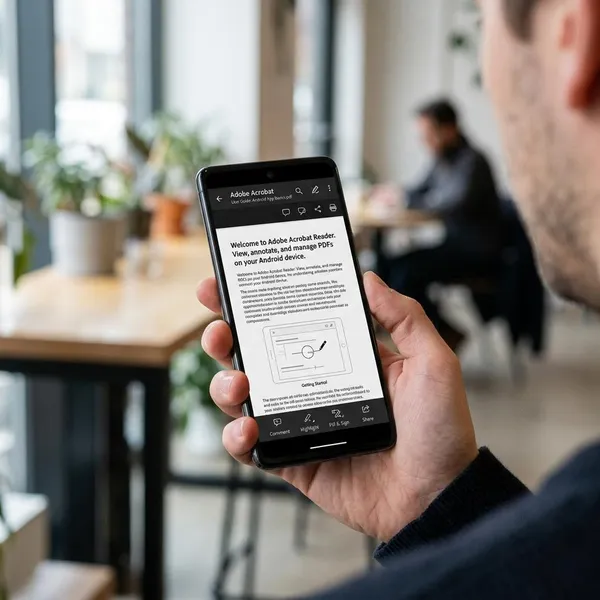
The basic workflow is simple: open a PDF, adjust the view, find the section you need, add any notes or form entries, then save or share the file. The main thing is to choose the right tool for the job instead of tapping through menus by trial and error.
Open a PDF from your device or cloud storage
Use local storage for files already saved on your phone, such as downloads and email attachments. Use cloud storage when the same file needs to stay available across devices or shared folders.
A travel ticket stored locally is fine for quick offline access. A work proposal that several people may review is better kept in a connected cloud location so the latest version is easier to find.
Adjust the reading view
Use zoom, page display options, and supported reading features to make the PDF easier to read on a small screen. Some files may support Liquid Mode, while scanned or complex layouts may not.
- Small text: zoom or switch view before you start reading seriously.
- Long documents: combine search with page navigation.
- Scanned PDFs: expect fewer flexible reading options.
Search and move between pages
Search for names, dates, invoice numbers, clauses, or section titles instead of scrolling through a long PDF. Page navigation is useful when you already know where the information should be, such as page 2 of a form or the final page of a contract.
Add highlights and comments
Select text to highlight important parts or add a comment where you need to remember a question. Comments are especially helpful when someone else will review the file because the note stays attached to the exact place in the document.
Fill in fields and add a signature
Tap into fillable fields to enter your information, then use the signature tool if the document requires it. Use a stylus if you have one, but a finger signature is often enough for routine forms.
Save or share the finished PDF
Save the completed file before sending it, then reopen it to check the result. Look for missing fields, misplaced signatures, unreadable text, or the wrong file version.
- For personal records: save a copy with a clear file name.
- For email return: attach the finished PDF, not the blank original.
- For shared folders: confirm whether others can edit or only view it.
Conclusion
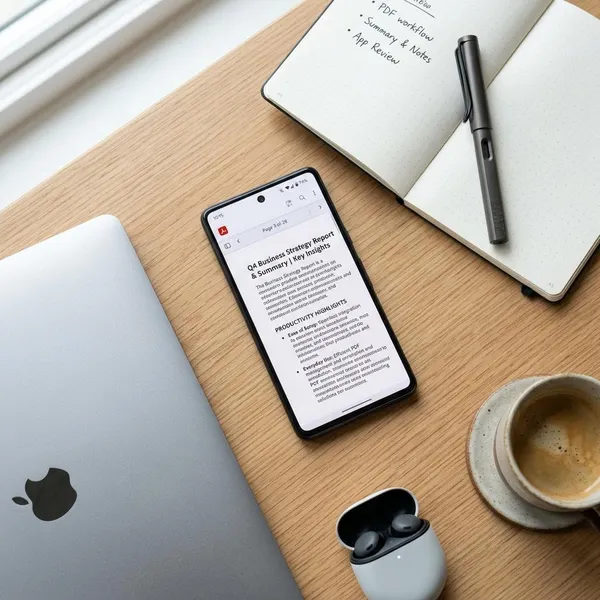
Adobe Acrobat Reader is a sensible first choice on Android if your PDF work is mostly reading, searching, highlighting, filling, signing, and sharing. Stay with the free version unless you regularly need real PDF editing or conversion, and make a habit of checking the developer, permissions, and final saved file when the document is sensitive or important.