Which 3D Printer Slicer Software Is Best in 2026?
The best 3D printer slicer software is usually the one that already understands your printer, not the one with the longest feature list. For most FDM users, I would start with OrcaSlicer; for Bambu Lab printers, Bambu Studio is the easiest fit; for resin, Lychee Slicer or CHITUBOX makes more sense. If you are new, choose the slicer with the safest ready-made profile first, then worry about advanced tuning later.
What is the best 3D printer slicer software?
There is no single best slicer for every printer. A Bambu owner, a Prusa owner, a resin miniature painter, and someone running an older Ender-style machine all need slightly different things. The first filter should be printer compatibility, then profile quality, then how much tuning control you actually want.
- Most FDM printers: OrcaSlicer.
- Bambu Lab printers: Bambu Studio.
- First-time FDM users: UltiMaker Cura.
- Prusa printers: PrusaSlicer.
- Resin miniatures and detailed models: Lychee Slicer.
- Free resin workflow: CHITUBOX.
- Paid support and process control: Simplify3D.
OrcaSlicer for most FDM printers
OrcaSlicer is the strongest all-around pick for many FDM users because it combines broad printer support with genuinely useful calibration tools. If you print with PLA one week, PETG the next, and then start chasing cleaner corners or better top surfaces, Orca gives you a clearer path than simply changing random settings.
Bambu Studio for Bambu Lab printers
For Bambu Lab owners, Bambu Studio is the low-friction choice. The printer profiles, AMS handling, material presets, remote sending, and device communication are built around the same ecosystem, so the software feels less like a separate technical step.
UltiMaker Cura for beginners
Cura is still a sensible starting point if you are learning FDM printing and want fewer decisions on the first day. It supports a wide range of common printers, has a large community, and makes basic slicing easy enough for simple household prints, toys, brackets, and test models.
PrusaSlicer for Prusa printers
PrusaSlicer is the natural fit for Prusa machines because the official profiles are mature and usually reliable. If your priority is predictable results rather than constantly testing the newest slicing feature, it is still one of the safest FDM choices.
Lychee Slicer for resin printing
Lychee Slicer is a strong resin choice for miniatures, display figures, jewelry-style prints, and other detailed models where support placement matters. Resin slicing is less about infill and nozzle paths and more about orientation, hollowing, drainage, islands, and exposure layers.
CHITUBOX for a free resin workflow
CHITUBOX is often the easiest free resin slicer to try first, especially if your printer brand recommends it. Many consumer resin printers are built around CHITUBOX-style workflows, so compatibility is its main strength.
- Good fit: casual resin users who want basic hollowing, orientation, and support tools.
- Less ideal: users who want the most polished interface or advanced automation without paid upgrades.
Simplify3D for paid support and control
Simplify3D is not the default recommendation for most home users anymore, mainly because free slicers have become very capable. Its place is narrower: users who want commercial support, detailed process control, or a familiar paid-software workflow.
If you print occasionally at home, start free. If you run several machines, print customer parts, or lose real time when troubleshooting, paying for dedicated support may be easier to justify.
How do you choose the right 3D slicer?
Choose the slicer that gives you the best starting profile for your exact printer. After that, look at whether it matches your printing type, how easy it is to tune, and whether it fits the way you move files to the machine.
Check printer compatibility
Start here before comparing features. The slicer should support your exact printer model, build volume, bed shape, nozzle size, and start/end commands. If those basics are wrong, print quality problems can appear before the model even starts properly.
Compare ready-made profiles
A slicer listing your printer name is not enough. Profile quality decides how good your first prints are likely to be: speeds, cooling, retraction, bed temperature, support defaults, and material presets all matter.
- Load the same model in two slicers.
- Select the closest official profile.
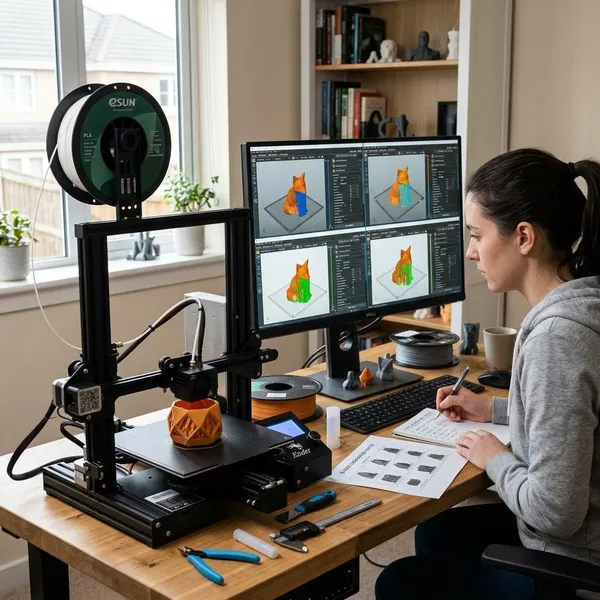
- Compare estimated time, supports, first layer, and preview paths.
- Pick the one that looks more predictable before tuning anything.
Match the slicer to FDM or resin
FDM and resin printing need different software priorities. FDM slicers control extrusion, infill, walls, temperatures, seams, and travel moves. Resin slicers focus on exposure layers, supports, orientation, hollowing, drainage, and avoiding failed islands.
Consider setup and tuning options
Think about how much control you actually want. Someone printing a phone stand once a month may prefer a clean preset and minimal settings. Someone printing fitted brackets, cosplay parts, or mechanical pieces will probably want calibration tests, better preview tools, and finer control over walls, seams, and supports.
Review device and network support
Network features are not essential, but they change how often you enjoy using the slicer. Sending prints over Wi-Fi, monitoring jobs, managing multiple printers, or working with a cloud-connected workflow can save small amounts of time that add up quickly.
Compare free and paid features
Most users should begin with free slicer software. Free options already cover slicing, supports, previews, material profiles, and printer profiles well enough for normal home printing.
| Choose free software when | Consider paid software when |
|---|---|
| You are learning or printing casually | Troubleshooting time costs you money |
| Your printer has a strong official profile | You need dedicated vendor support |
| You mainly print PLA, PETG, resin models, or household parts | You need a specific advanced workflow a free slicer lacks |
How do the best FDM slicers compare?
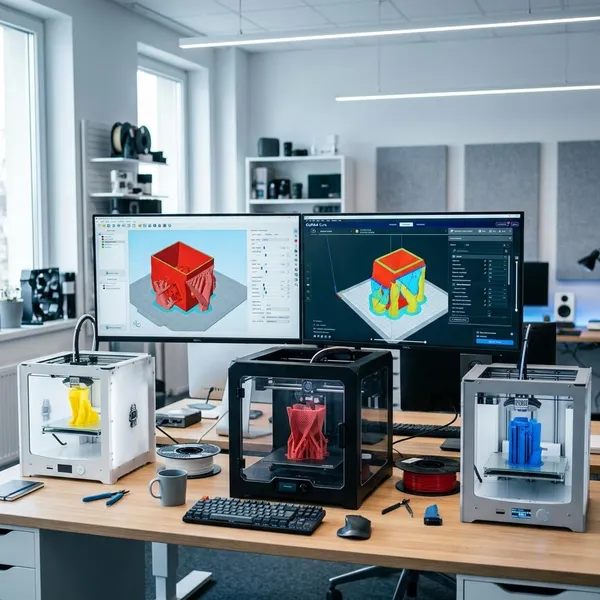
The best FDM slicers can all produce good prints when the profiles are tuned well. The real difference is how quickly they get you to a good result, how much they help when something goes wrong, and whether their workflow matches your printer setup.
OrcaSlicer offers more calibration tools
OrcaSlicer stands out because its calibration tools are built into the workflow. Flow rate, pressure advance, temperature behavior, and related tests are easier to run without jumping between websites and downloaded models.
Bambu Studio offers tighter ecosystem support
Bambu Studio is strongest when used with Bambu Lab printers, especially if you use AMS multi-color printing or remote sending. The profiles, printer communication, and material handling feel coordinated because they were designed for the same hardware.
Cura offers broad printer compatibility
Cura's advantage is reach. Many entry-level and older FDM printers either have Cura profiles or a large community of users sharing settings, which makes troubleshooting easier for beginners.
PrusaSlicer offers a stable Prusa workflow
PrusaSlicer is reliable, mature, and especially comfortable on Prusa hardware. It does not need to feel flashy to be useful; for many users, stable profiles and predictable updates matter more than constant interface changes.
- Best for: Prusa owners and users who like a steady workflow.
- Useful tools: paint-on supports, variable layer height, modifier meshes, and clean 3MF project handling.
- Watch for: less beginner hand-holding than Cura in some areas.
Simplify3D offers dedicated paid support
Simplify3D's clearest difference is its paid support model. That is not a small point if you print for a side business, manage several machines, or need someone accountable when a software issue blocks production.
How do you use a 3D printer slicer?
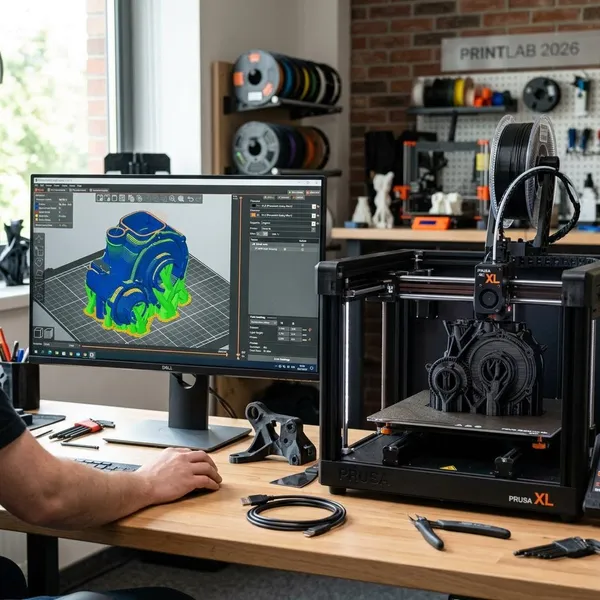
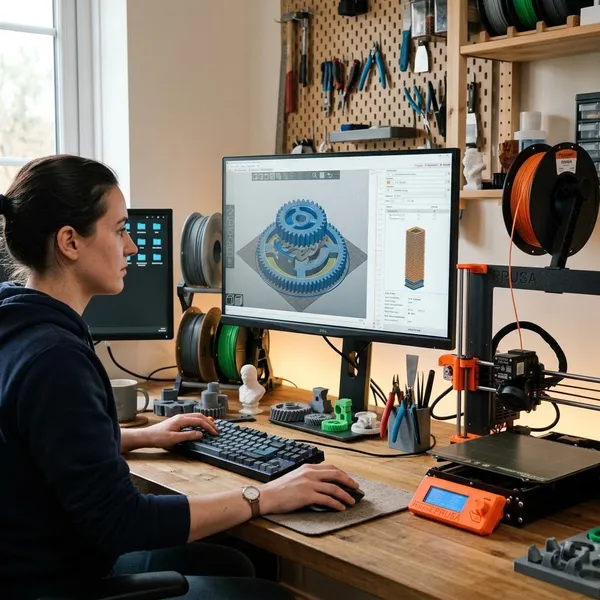
A slicer turns a 3D model into printer instructions. The basic workflow is simple: choose the printer, import the model, select material settings, adjust supports and infill, inspect the preview, then export or send the file.
Select the correct printer and nozzle
Pick the exact printer profile and nozzle size before touching the model settings. A 0.4 mm nozzle profile used on a 0.6 mm nozzle, or the wrong build plate dimensions, can cause confusing problems that look like material or leveling issues.
Import an STL or 3MF file
Import the model file, then check scale and orientation before slicing. STL is common, but 3MF is often more useful because it can preserve project settings, object placement, and sometimes color or material information.
Choose the material and print profile
Select the material profile that matches what is actually loaded in the printer. PLA, PETG, TPU, ABS-style materials, and resin all need different assumptions for temperature, speed, cooling, adhesion, or exposure.
Adjust supports and infill
Supports and infill should match the model's purpose, not a habit you use for everything. A decorative figure, a drawer divider, and a wall-mounted bracket should not all get the same settings.
- Decorative print: lower infill is often enough; surface quality matters more.
- Functional part: wall count, print orientation, and layer bonding may matter as much as infill.
- Detailed model: support style and contact points can affect cleanup more than print time.
Preview every layer
Layer preview is the last cheap chance to catch a bad print before wasting material. Look for unsupported overhangs, strange gaps, missing top surfaces, awkward seams, and toolpaths that seem to start in the wrong place.
Export or send the print file
Export the file in the format your printer expects, or send it directly if your slicer and printer support network transfer. Before starting, check three things: the file name, the selected material, and the nozzle profile.
Conclusion
Start with the slicer that fits your printer most closely, then switch only if another tool solves a real problem. OrcaSlicer is the best first test for many FDM users, Bambu Studio is the obvious pick for Bambu Lab machines, Cura is still friendly for beginners, PrusaSlicer is dependable for Prusa owners, and Lychee or CHITUBOX is the better direction for resin. The right choice is the one that gives you a reliable profile, a clear preview, and enough control without making every print feel like a tuning project.